













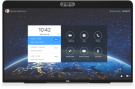
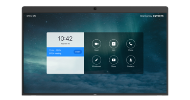
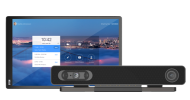
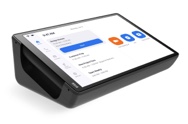



Applies to: DTEN Windows devices (D7, D7X-Windows)
This guide explains how to reset your DTEN Windows device to factory settings using a wired USB keyboard.
Before You Begin
- You will need a wired USB keyboard (Windows-compatible).
- Plug the keyboard into one of the blue-colored USB ports on the side of the device.
Step-by-Step Instructions
Plug in a Windows wired USB keyboard into one of the blue-colored USB ports on the PC.
- Look to the left side of the display and find the PC embedded into the side.
- Find the PC’s “power” button. Press and hold for 4 seconds to completely shut down the PC.
- Press the “power” button again to power on the PC.
-
Press down on the CTRL + F4 keys to place the PC into recovery while the screen shows the following:
(Note: If you have a Logitech keyboard, press down on the CTRL + Function + F4 keys)
- After approximately 5 minutes of executing, the PC will enter recovery while in the “Out of Box” (OOB) state.
If you have additional questions or need to contact DTEN Support, please refer to this DTEN Knowledge Base article for more details: HERE.

Comments
0 comments
Article is closed for comments.