

Overview
This article provides guidance on the HDMI (BYOD) mode options available in the Zoom portal or DTEN Orbit, including how to manage connections, share content, and switch HDMI sources..
Supporting Products
- DTEN Orbit
Solutions:
Problem 1: Difficulty with BYOD Connection
Solution:
-
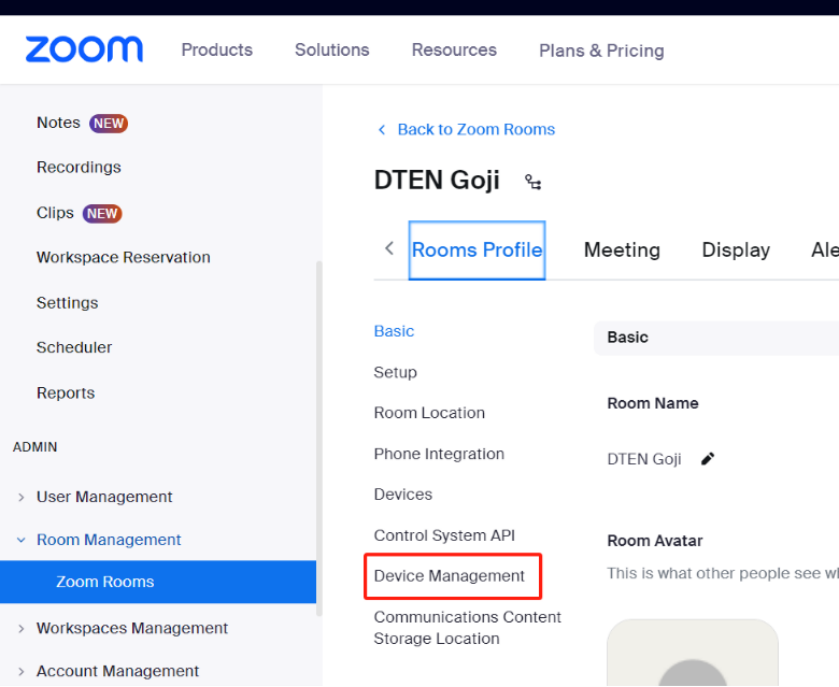
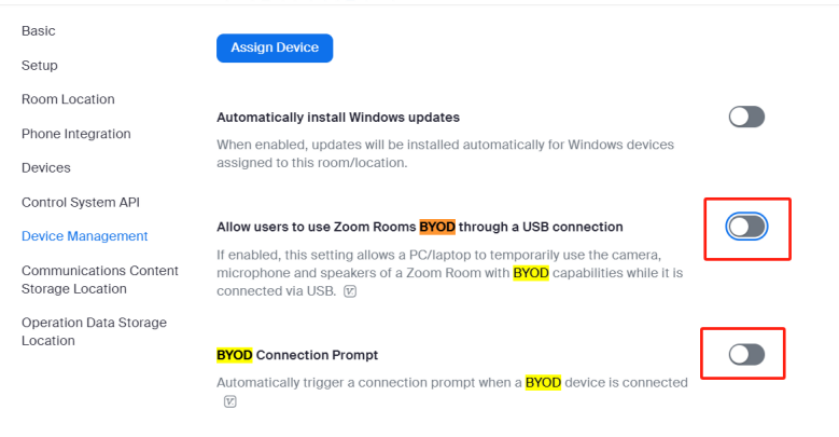
BYOD Connection Prompt in Zoom Portal
- Check if the BYOD function is enabled or disabled.
- Determine whether BYOD prompts are displayed as large boxes or small prompts in the bottom left corner.
Problem 2: HDMI Content Sharing Issues
Solution:
-
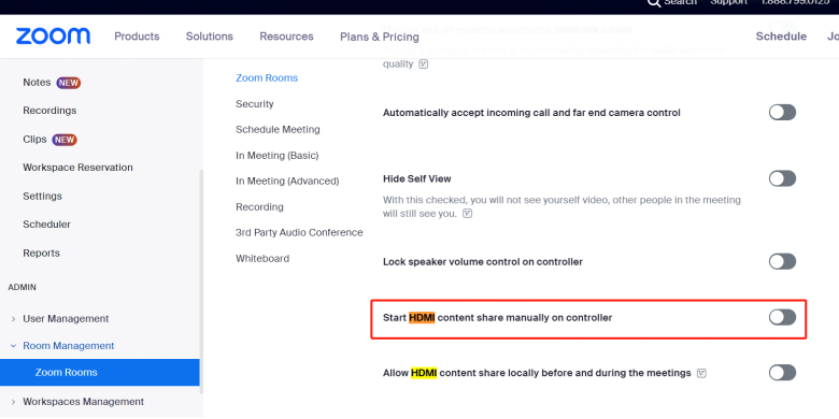
Manual HDMI Content Share
- To enable manually-initiated wired HDMI content sharing:
- Sign in to the Zoom web portal as a user with access to Zoom Rooms.
- Click on Room Management and then Zoom Rooms.
- Locate the desired Zoom Room and click Edit.
- Click on the Meeting tab.
- Toggle on Start HDMI content share manually on controller.
- With this setting enabled, you can disable automatic detection for HDMI sharing, which is useful for dedicated devices.
- To enable manually-initiated wired HDMI content sharing:
-
Using Local Content Sharing in a Zoom Room Meeting
- Start a Zoom Room meeting.
- Plug in your devices for manual or automatic HDMI sharing.
- The shared content will appear on the Zoom Rooms display but will not be shown to participants initially.
- To share the content with meeting participants:
- Tap Share Content, then tap Share to Meeting.
- You can also plug in devices and begin sharing before starting the meeting.
Problem 3: HDMI Source Switching in DTEN Orbit
Solution:
-
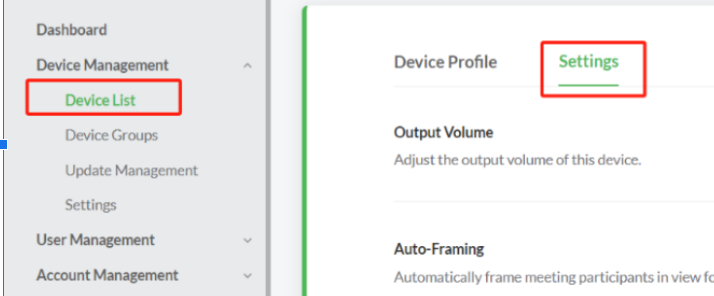
HDMI Source Switch in DTEN Orbit
- Orbit settings have higher priority than Zoom portal options.
- Enable the HDMI default setting in Orbit to allow the device to automatically agree to the BYOD prompt and show the HDMI IN signal.
- Ensure that the Zoom portal BYOD option is also enabled.

Additional Resources
For more information, visit the Zoom Support Article.
If you encounter any problems during the forced factory reset process, please contact DTEN support team [How to contact DTEN Support] for further assistance.
Was this article helpful?
That’s Great!
Thank you for your feedback
Sorry! We couldn't be helpful
Thank you for your feedback
Feedback sent
We appreciate your effort and will try to fix the article