
Overview
When using Mate Gen2 with a large-screen Windows system on Zoom, touch calibration is required. Incorrect calibration may cause touch functionality to stop working on either the large display or Mate Gen2.
- Zoom Rooms: Touch calibration is required for both D7X Windows and D7X AI board systems.
- Microsoft Teams: Touch calibration is not required, as Teams automatically detects and recognizes the displays and touch controllers through Windows.
Steps
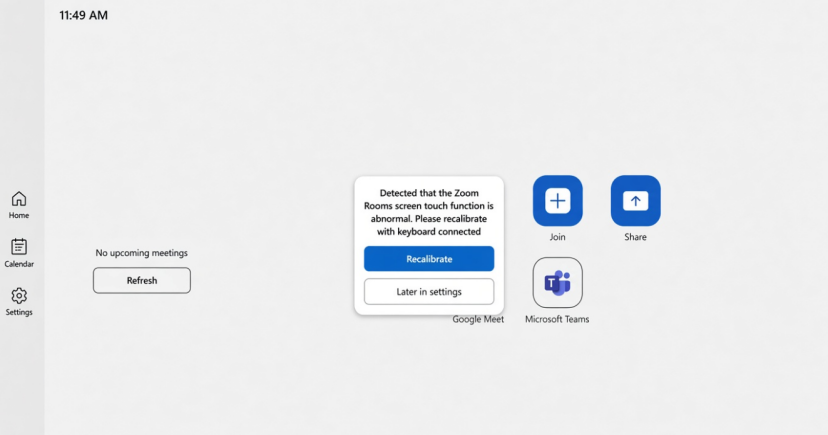
After Mate Gen2 is connected to D7X Windows or D7X AI board, a pop-up will appear on Mate Gen2 prompting you to calibrate the screens.
Requirement: Make sure the keyboard connected in Step 3 is available and working.
Follow the on-screen prompts to calibrate both screens.
1. On Mate Gen2’s screen Prompt, please Select “Recalibrate” .
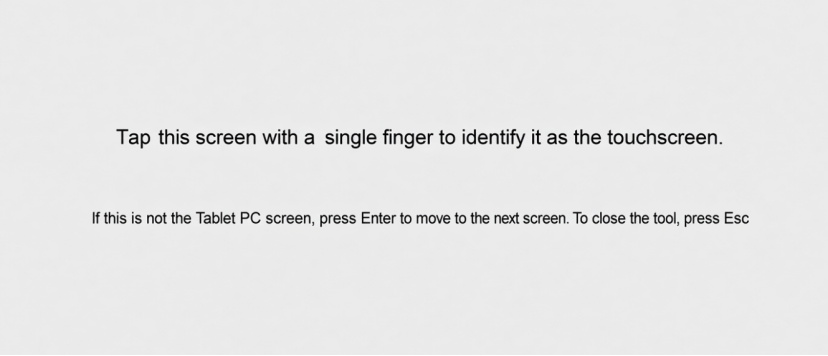
2. On D7X Windows or D7X AI board screen, please tap D7X Windows or D7X AI board screen as prompted.
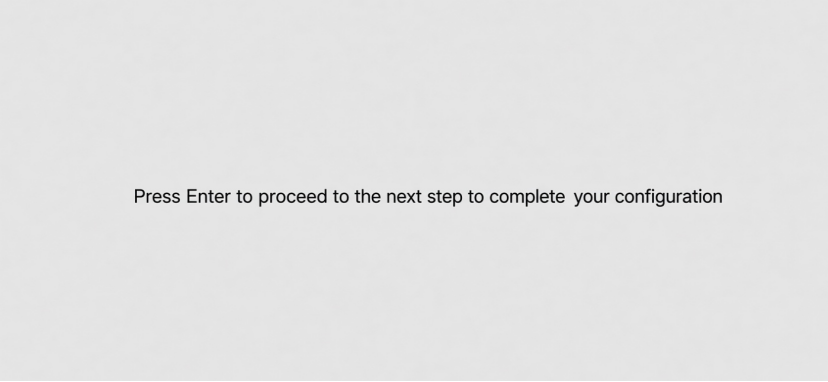
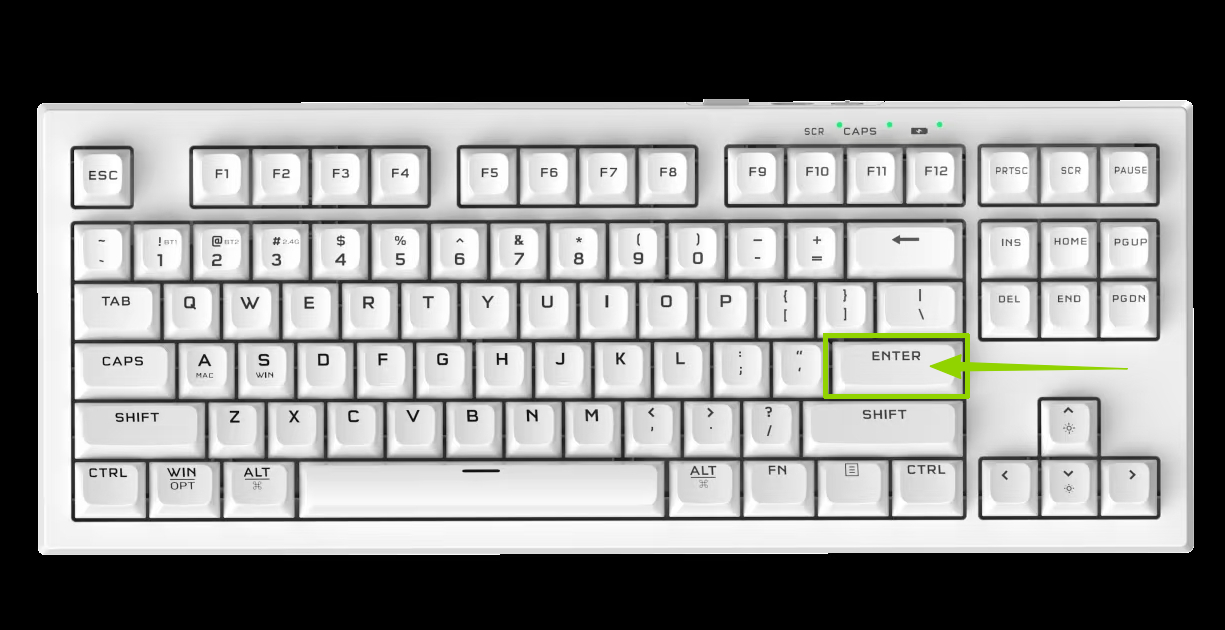
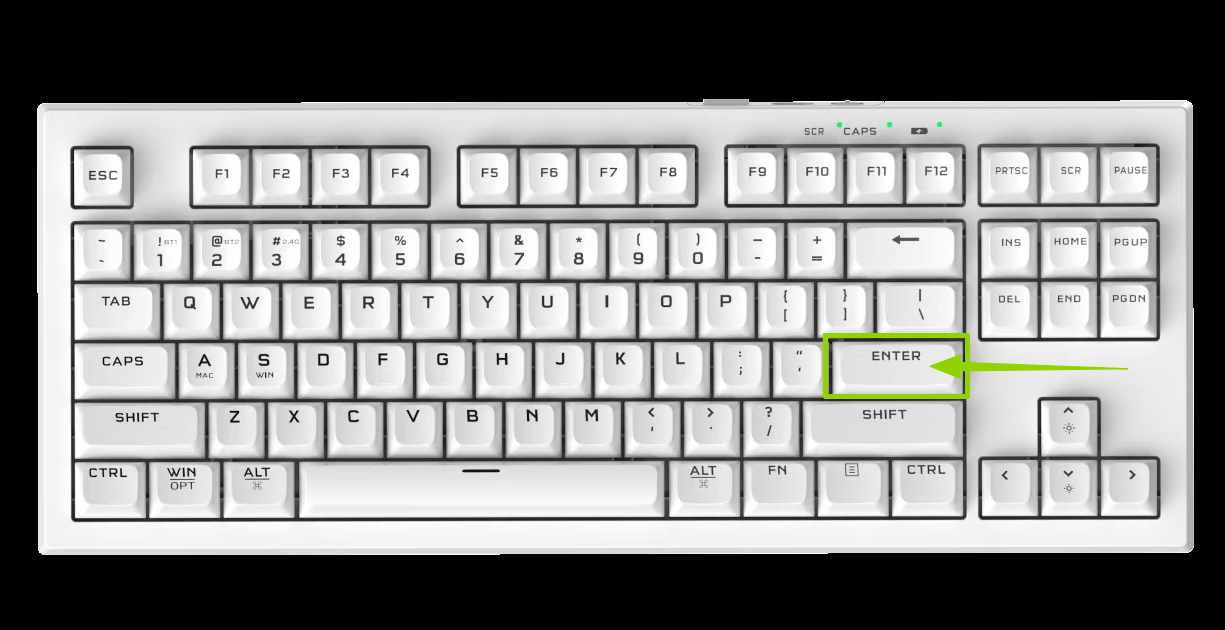
3. Press Enter on the keyboard.
4. Tap the Mate Gen2 screen as prompted.
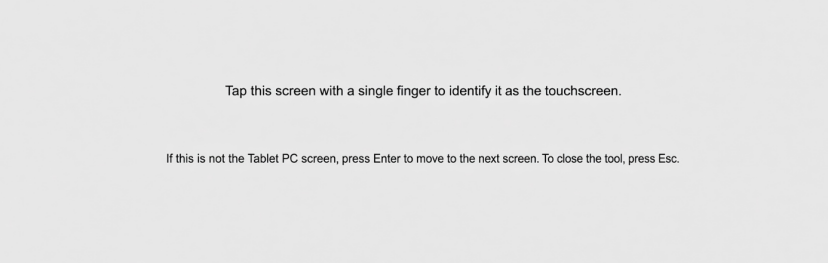
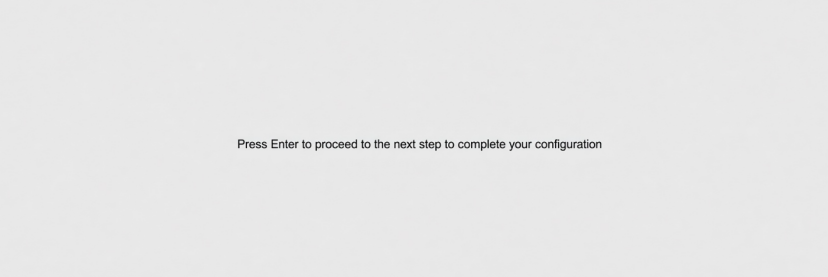
5. When prompted on the Mate Gen2 screen, press Enter on the keyboard.
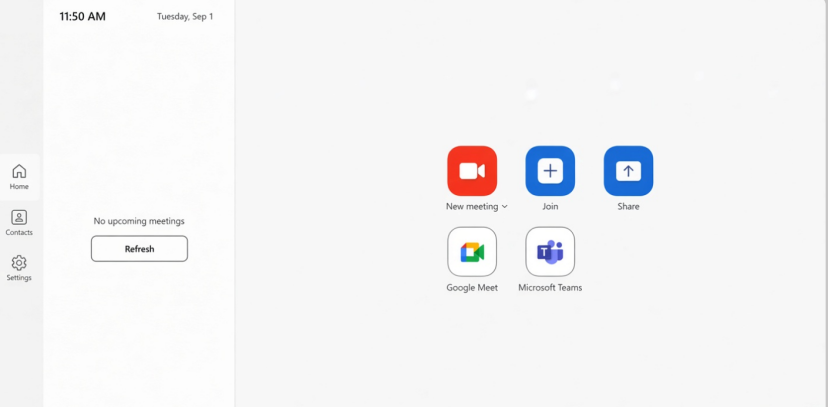
6. Mate Gen2 + D7X Windows or D7X AI board setup complete.
(Mate Gen2 screen after configuration and calibration on D7X Windows or D7X AI board and Mate Gen2.)
If you have additional questions or need to contact DTEN Support, please refer to this DTEN Knowledge Base article for more details: HERE.
Was this article helpful?
That’s Great!
Thank you for your feedback
Sorry! We couldn't be helpful
Thank you for your feedback
Feedback sent
We appreciate your effort and will try to fix the article