







Overview
Try these troubleshooting steps if you are having sound and microphone issues with your DTEN D7 devices.
Low volume
- Please check your volume level by pressing the volume buttons located at the lower right side of the unit's rear panel.
-
Check the volume level settings on Zoom Web Portal (guide HERE), and make sure the default volume level is set to your preference.
The microphone is producing robotic sound
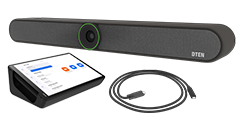
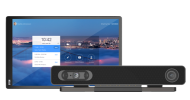
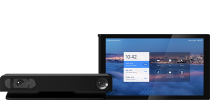
- Replug the DTEN media bar (located on the top of the unit) by removing it and reseating it back.
- You will see a notification and a plug-in sound effect if the system detects the media bar.
No Sound picked up from Microphone in Zoom Meeting
-
Please check your mic setting and make sure the mic is enabled.
1. On Zoom Rooms homescreen, tap the screen and then tap the gear-shaped icon in the lower-right corner.
2. In the left-side navigation bar, please tap Microphone and make sure the D7 Microphone Array is selected as the default source.
- If no microphone is detected in Zoom settings, please switch to Zoom Admin account (guide HERE) -> right-click Windows icon -> go to Device Manager -> check if DTEN Mic Array is detected under Audio inputs and outputs.
If you have additional questions or need to contact DTEN Support, please refer to this DTEN Knowledge Base article for more details: HERE.

Comments
0 comments
Article is closed for comments.