















Overview
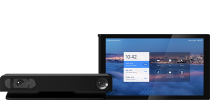
This document outlines the procedures to factory reset the DTEN D7X Windows device. Two distinct methods are detailed: the On-Device Reset, a software-driven process accessible from within the system settings for standard initialization, and the Force Factory Reset, a hardware-based recovery technique employed to resolve critical system failures by using the device’s physical buttons.
Method 1: On-Device Reset
Steps:
1. Plug in a Windows wired USB keyboard into one of the blue-colored USB ports on the PC (OPS).
2. Look to the left side of the display and find the PC embedded into the side.
3. Find the PC’s “power” button. Press and hold for 4 seconds to completely shut down the PC.
4. Press the “power” button again to power on the PC.
5. Press down on the CTRL + F4 keys to place the PC into recovery while the screen shows the following:
(Note: If you have a Logitech keyboard, press down on the CTRL + Function + F4 keys)
6. After approximately 5 minutes of executing, the PC will enter recovery while in the “ Out of Box ” (OOB) state.
Method 2: Force Factory Reset(Hardware Method)
Steps:
1. Power Requirement
Ensure the power cord is connected to a stable and reliable power source.
2. Activate Reset Button
(Prerequisite: The device is turned on. )
- Locate the Factory Reset button on the device's OPS module.
- Press the OPS power button once to turn it off. The device screen will display “No Signal”.
-
Hold the Factory Reset button (using a paperclip or pin
) approximately 10-15 seconds, while holding the reset button, simultaneously press the OPS power button to turn it on.
- Release the reset button only after the device factory reset interface appears on the screen.
3. Reset Execution
The device will automatically reboot and restore factory settings.
*Note: Do not disconnect power during this process.
Getting Help
If you have additional questions, please contact DTEN Support at 1 (866) 936-3836 or click here.

Comments
0 comments
Article is closed for comments.