
Overview
This section provides step-by-step instructions for accessing the Windows desktop on the DTEN D7X AI Board in both Microsoft Teams Rooms and Zoom Rooms modes. It covers two access methods for each mode: using a wired keyboard or navigating through the device's touchscreen interface. The instructions also explain how to access the appropriate administrator account and sign in using the default credentials.
D7X AI Board in Teams Mode
You can access the Windows desktop using either of the following methods.
Method 1: Use a wired keyboard
1. Connect a Windows-layout wired keyboard to the blue USB port on the PC (the upper-left port on the rear panel).
2. Press Ctrl + Alt + Delete to open the Windows security screen and access the Windows lock screen.
3. In the lower-left corner, select Administrator.
4. Tap Sign in and enter the default password: sfb.
Method 2: Access Windows through the Teams interface
1. On the Teams Rooms home screen, tap More to expand the touchscreen controls.
2. Tap Settings.
3. Enter the administrator password when prompted. The default password is sfb (short for Skype for Business).
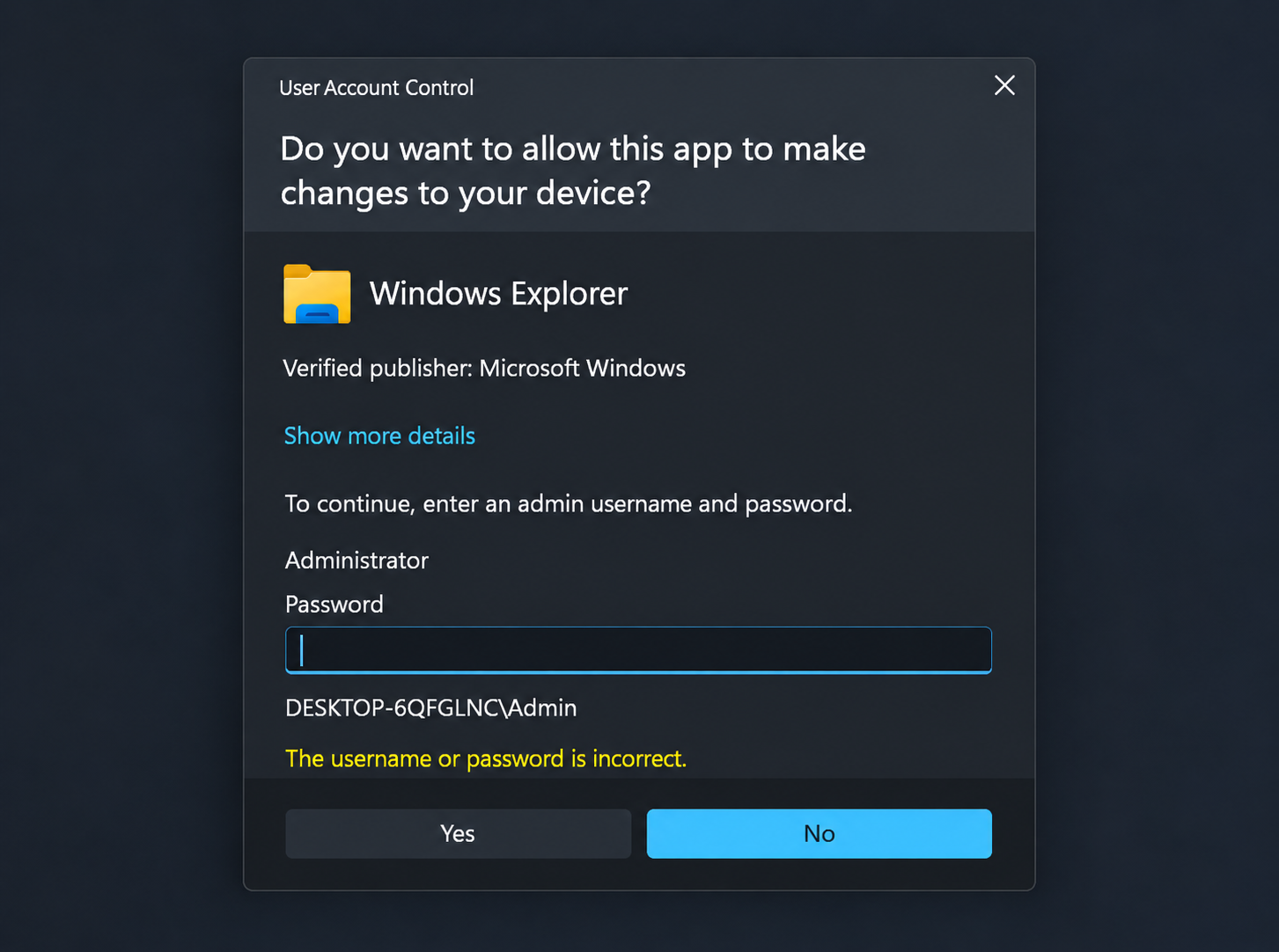
4. In the left navigation menu, tap Windows Settings at the bottom of the screen.
5. Tap Logout to return to the Windows lock screen.
6. In the lower-left corner, select Administrator.
7. Tap Sign in and enter the default password: sfb.
D7X AI Board in Zoom Mode
You can access the Windows desktop using either of the following methods.
Method 1: Use a wired keyboard to access Windows
1. Connect a Windows-layout wired keyboard to the blue USB port on the PC (the upper-left port on the rear panel).
2. Press Ctrl + Alt + Delete to open the Windows security screen and access the Windows lock screen.
3. In the lower-left corner, select Zoom Admin.
4. Tap Sign in and enter the default password: Zoom1234.
Method 2: Access Windows through the D7X AI interface
1. On the D7X AI display, tap Settings.
2. In the Settings menu, select the General tab on the left.
3. Select Windows Settings to exit the Zoom interface and open the Windows desktop.
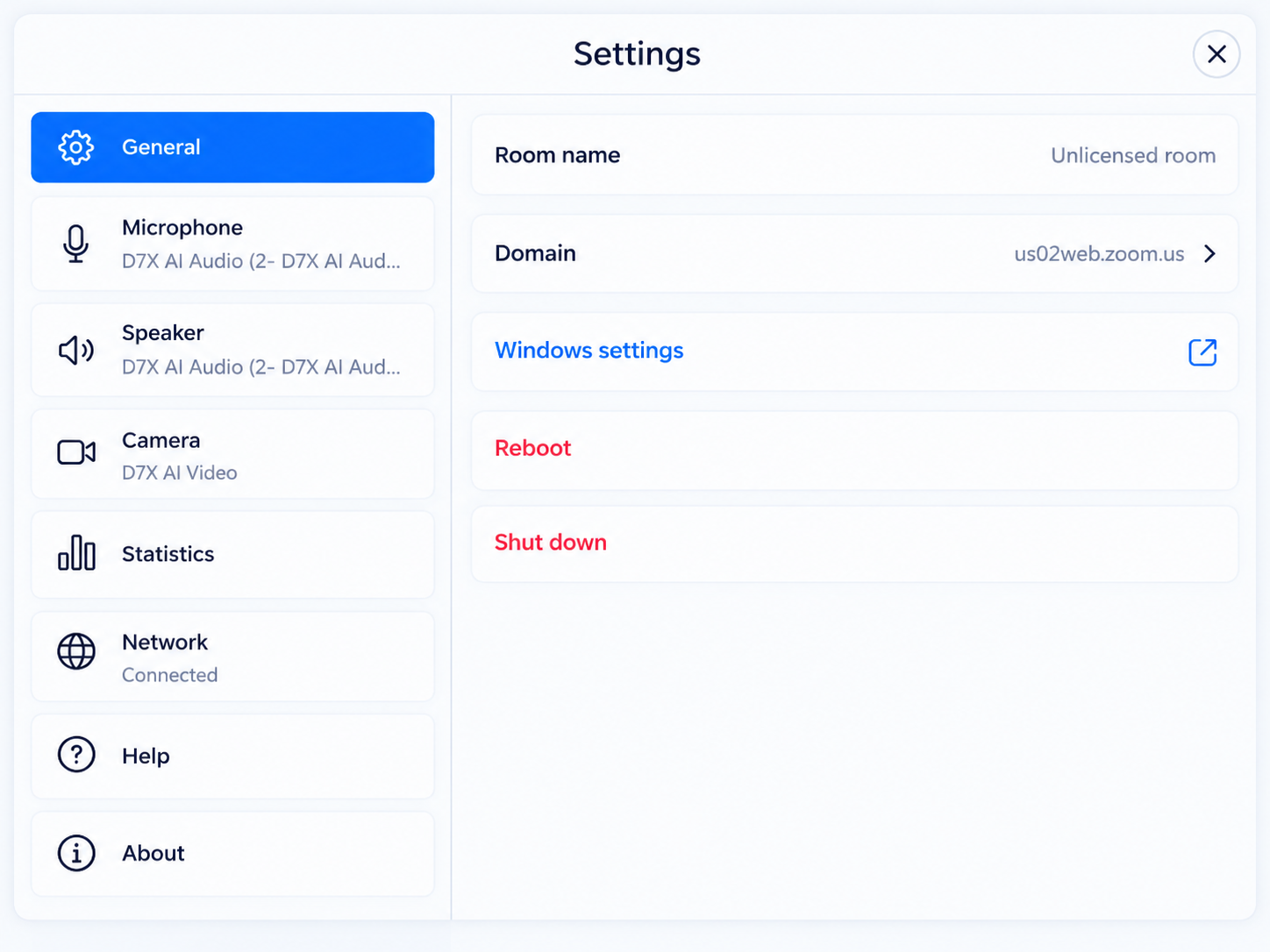
4. Select Zoom Admin and enter the default password: Zoom1234 to sign in to Windows.
If you have additional questions or need to contact DTEN Support, please refer to this DTEN Knowledge Base article for more details: HERE.
Was this article helpful?
That’s Great!
Thank you for your feedback
Sorry! We couldn't be helpful
Thank you for your feedback
Feedback sent
We appreciate your effort and will try to fix the article