
Overview
This article outlines how to update the system firmware version on D7X Android and D7X Windows devices via DTEN Orbit, the device dashboard, Zoom Device Management, and the Teams Admin Center.
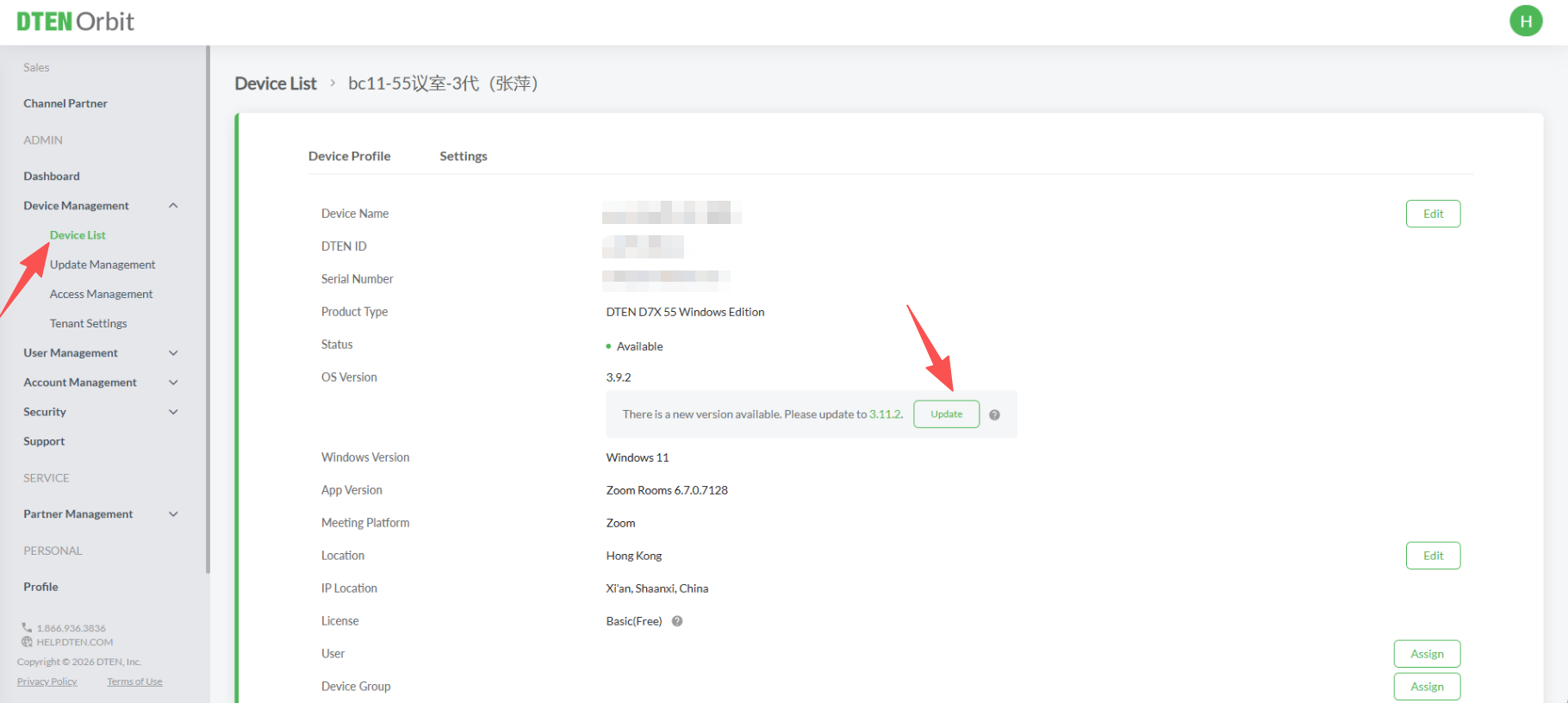
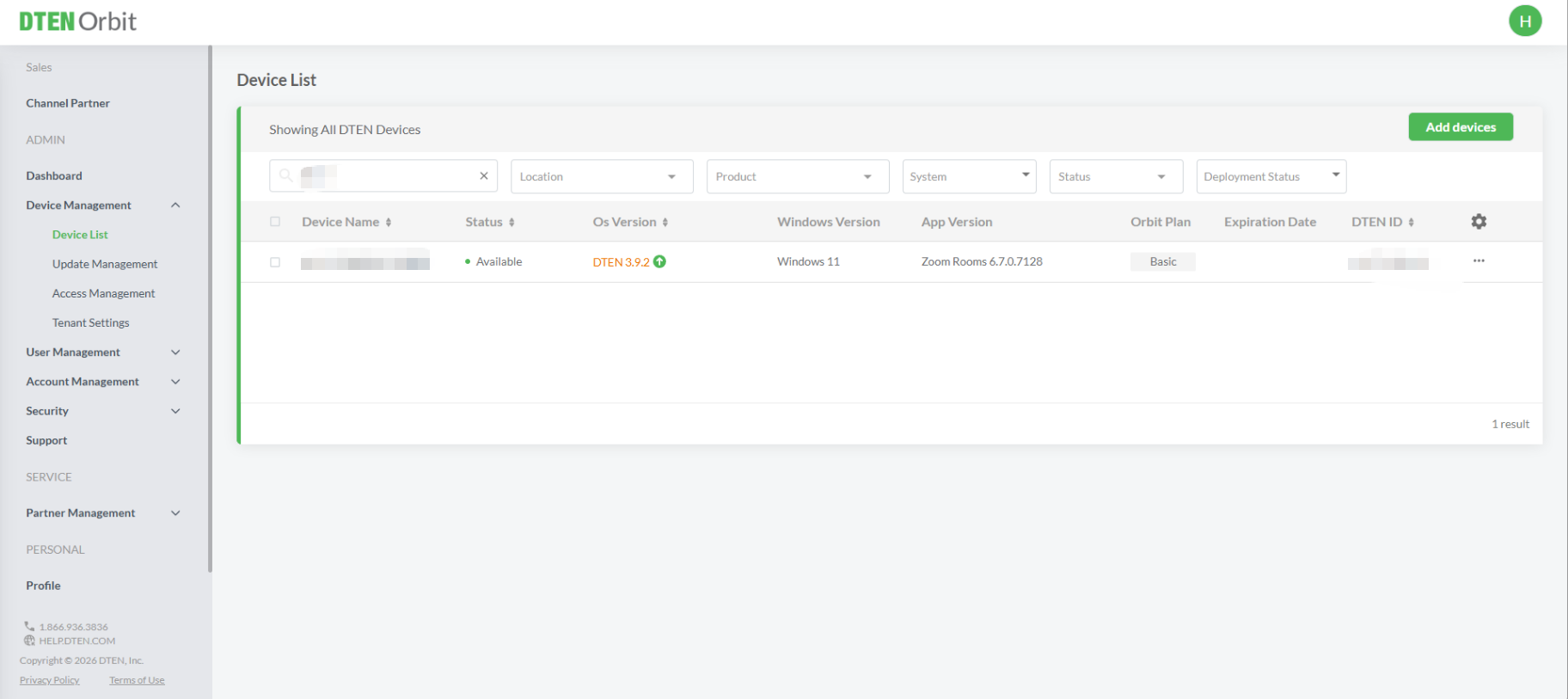
How to Update Firmware from DTEN Orbit
Applicable devices:
D7X Android 55/75, D7X 27, D7X Windows 55/75&75 Dual
Log in to DTEN Orbit: https://testcn.dten.com/
Go to the Device List.
Find your device.
Update to the latest firmware version if released.
How to Update Device Firmware from Zoom Device Management
Applicable devices:
D7X Android 55/75, D7X 27,D7X Windows 55/75&75 Dual
Method 1:
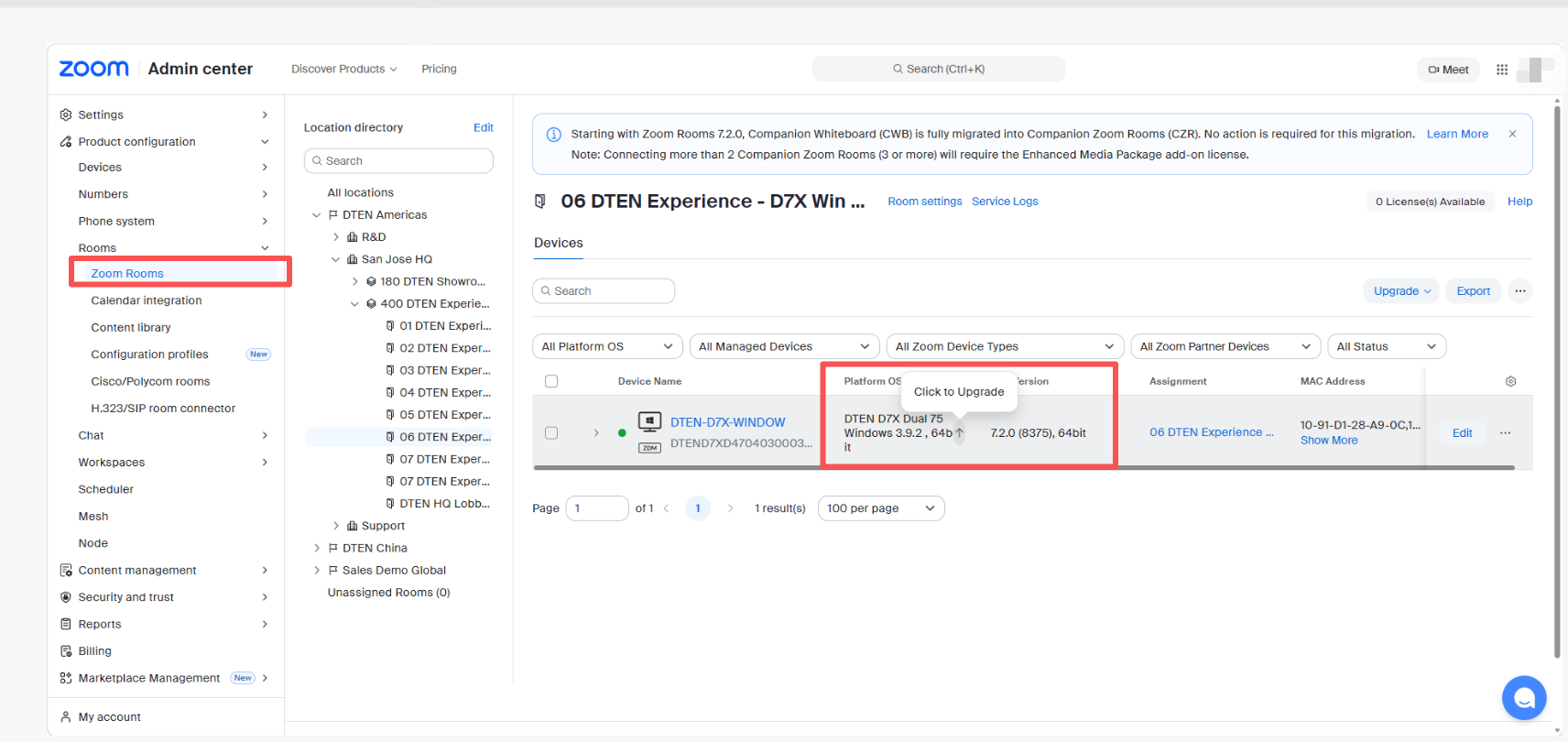
Sign in to the Zoom web portal and click Room Management.
Click Zoom Rooms, and then click Devices.
Click the device.
Click Upgrade OS.
Method 2:
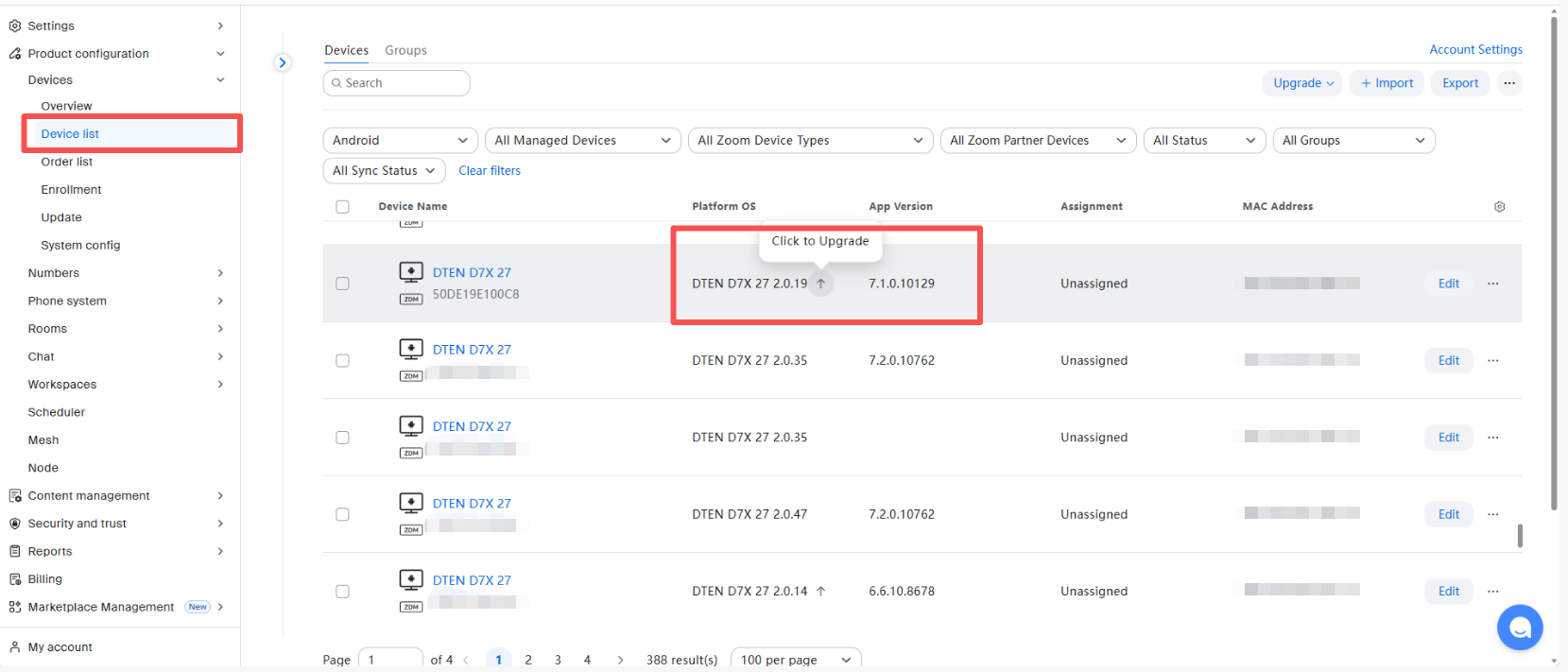
Sign in to the Zoom web portal and click Device List.
Choose and then click Devices.
Click the device you want to upgrade.
Click Upgrade OS.
How to Update Firmware from Teams Admin Center
Applicable devices:
D7X Android 55/75, D7X 27
Method 1:
Log in to the Teams Admin Center.
Select devices.
Find your devices and click on them.
Select Health.
Go to Firmware > Up to date.
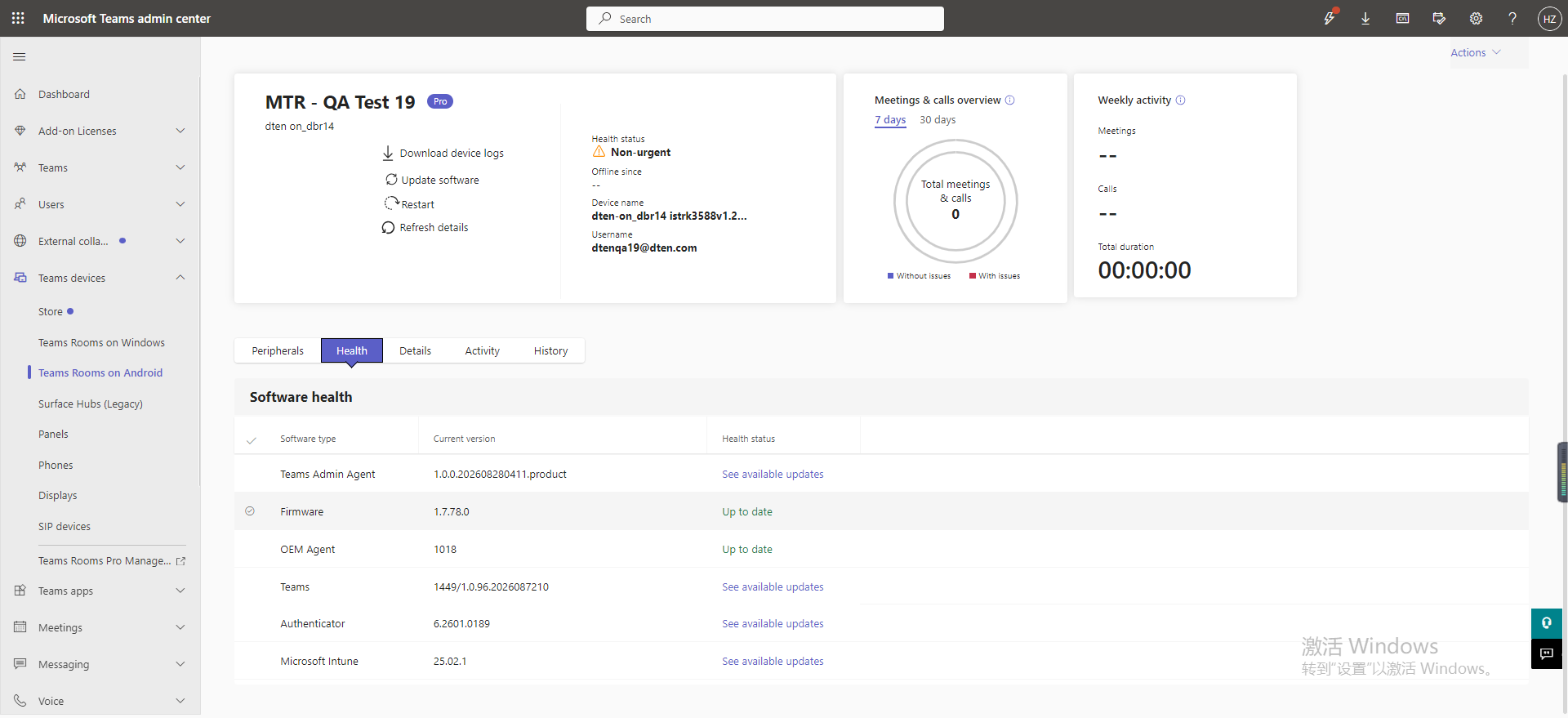
(Alternatively, select Available updates to manually update the device)
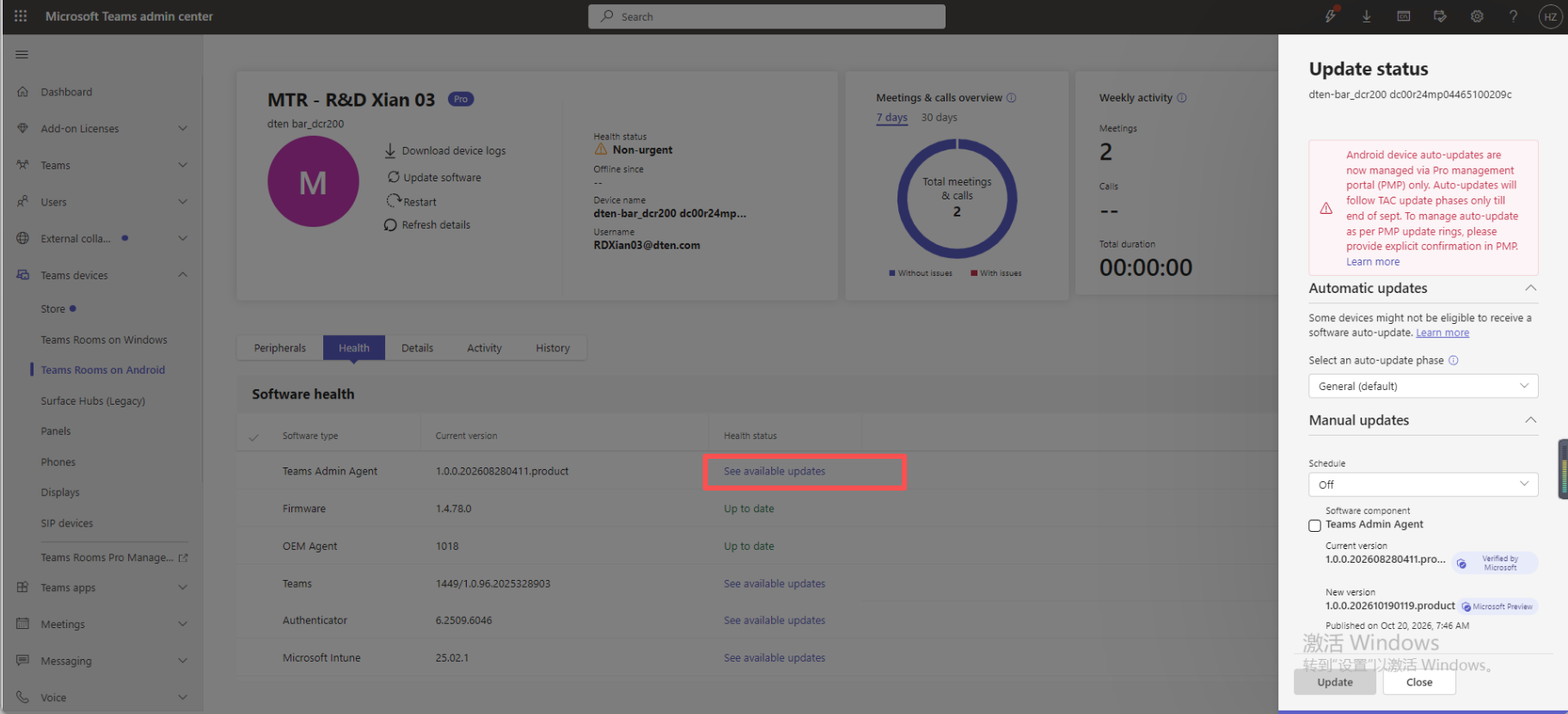
Method 2:
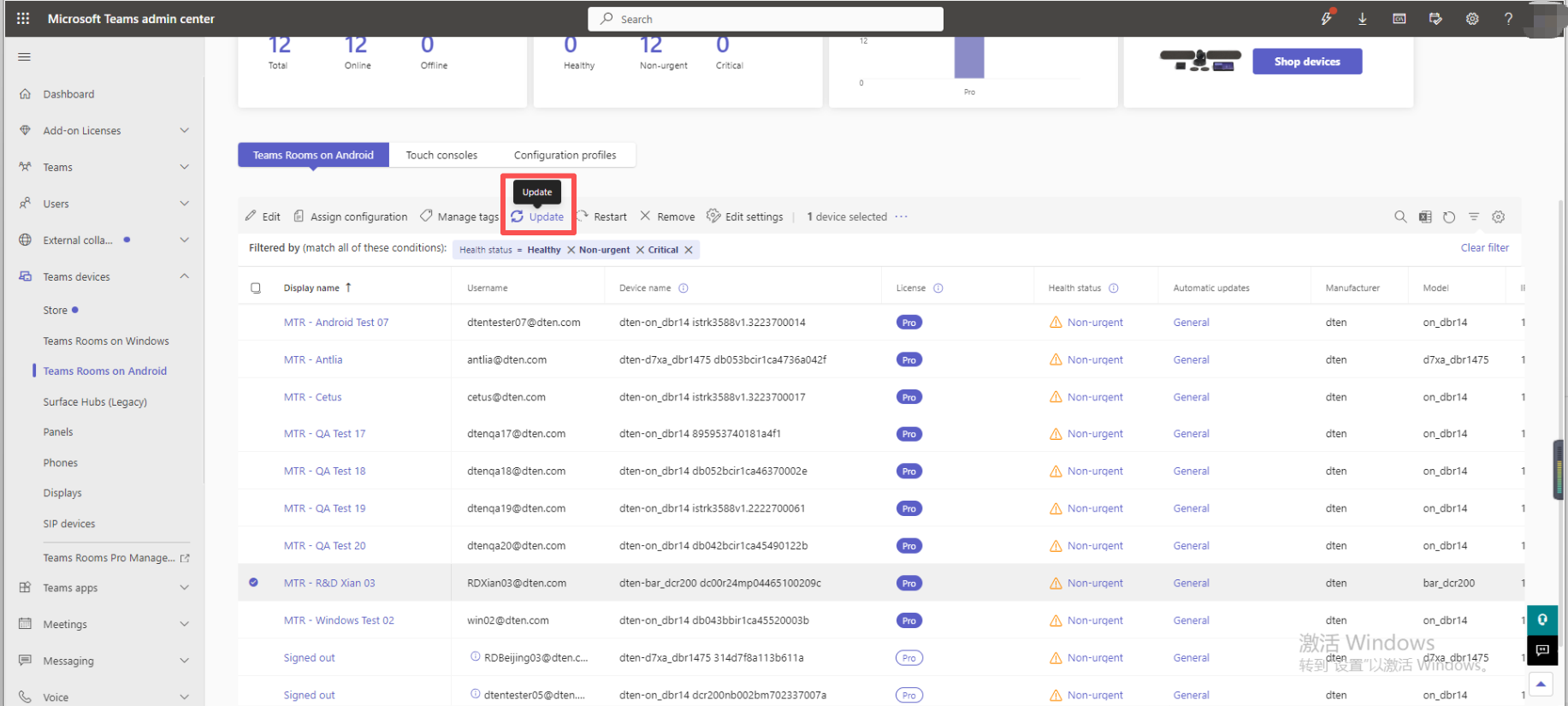
Log in to the Teams Admin Center.
Select devices.
Select the device and update it using this option.
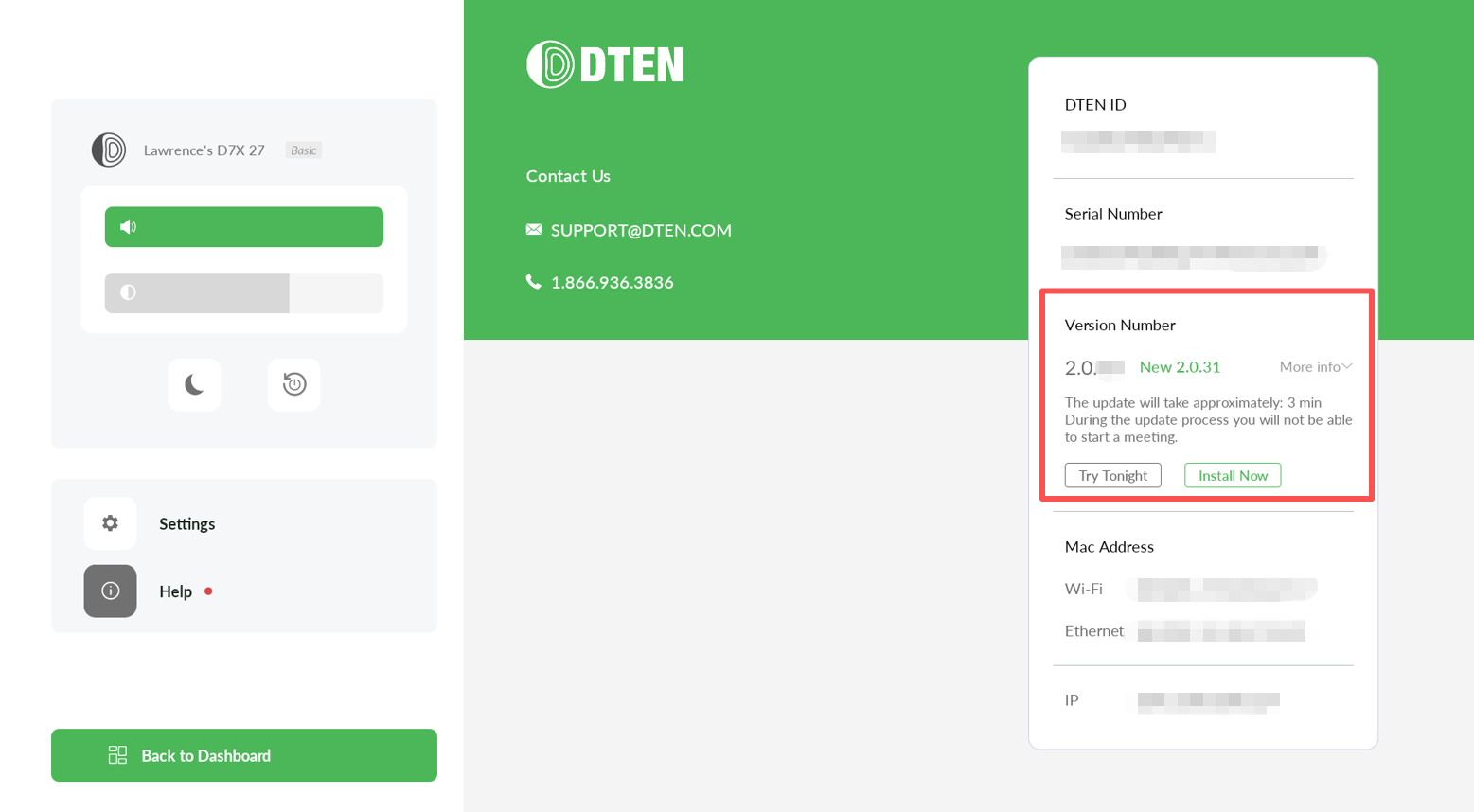
How to Update from the Device (Zoom/Teams)
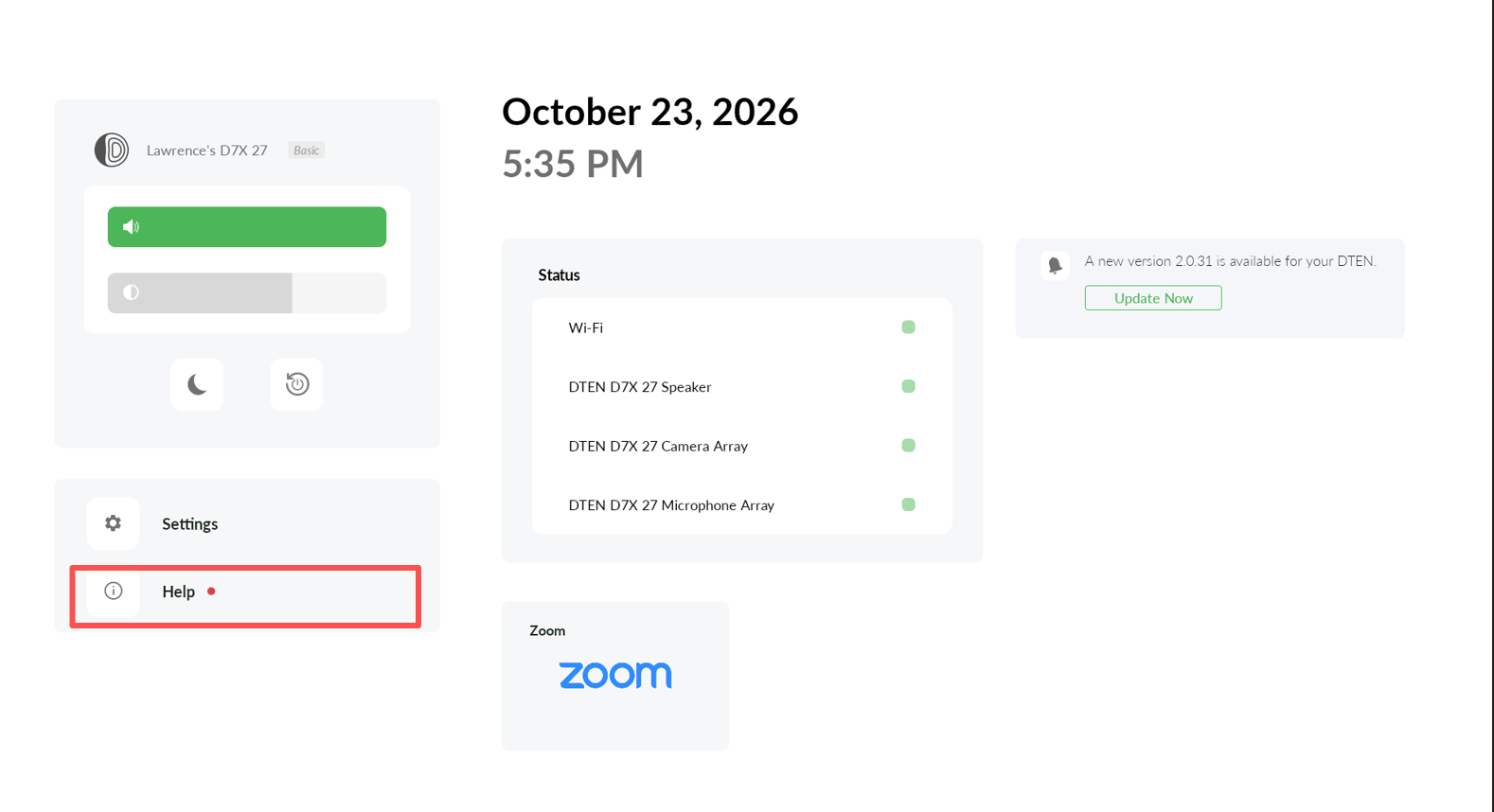
(This is only available for D7X Android models: D7X 55/75 Android, D7X 27. It will not appear on D7X Windows.)
Press the Menu button on the back of the device.
Click Help > Version Number > Update.
If you have additional questions or need to contact DTEN Support, please refer to this DTEN Knowledge Base article for more details: HERE.
Was this article helpful?
That’s Great!
Thank you for your feedback
Sorry! We couldn't be helpful
Thank you for your feedback
Feedback sent
We appreciate your effort and will try to fix the article