
Overview
Using Miracast on the DTEN D7X AI board running Microsoft Teams Rooms (MTR) on Windows to project your Windows laptop screen instantly without cables, extra apps, or joining a meeting.
Key Value Propositions & Operating Modes
Zero Cable / Zero App Friction: Uses Windows native casting (Win + K).
In-Meeting & Local Sharing: Functions like HDMI ingest—works for local presentation or streams to remote participants in an active Teams meeting.
Dual Connection Modes (Automatic):
Over the Network: Preferred when both the laptop and D7X AI are on the same network.
Point-to-Point (Wi-Fi Direct): Operates directly between devices even if they are on separate networks or offline.
Note: The system automatically negotiates the connection mode seamlessly for the user.
Prerequisites
Please verify that the following conditions are met:
Hardware: DTEN D7X AI Board (MTR on Windows Touch Board).
Licensing: Device assigned a Teams Rooms Pro license.
Presenter Device: A Windows laptop with Miracast support (Wi-Fi enabled).
Admin Activation: Miracast enabled in the Teams Rooms Pro Management Portal (requires device restart after toggling On).
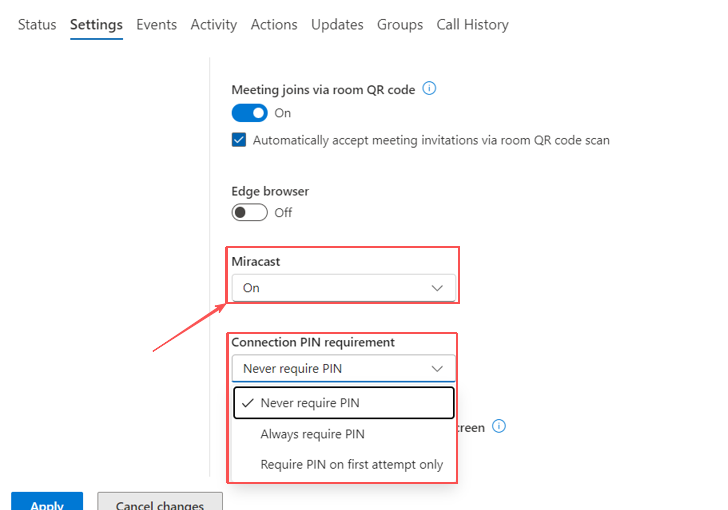
How to Enable Miracast on D7X AI Board
Step 1: Pre Check
Ensure the DTEN D7X AI board is powered on and the home screen is visible.
Step 2: Initiate Wireless Casting
On your Windows laptop, press Win + K to open the Cast menu.
Select your DTEN D7X AI room name from the list.
If prompted on screen, enter the PIN (if connection PIN requirement is enabled).
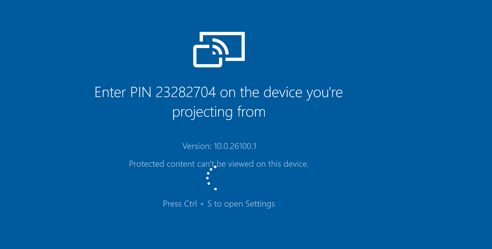
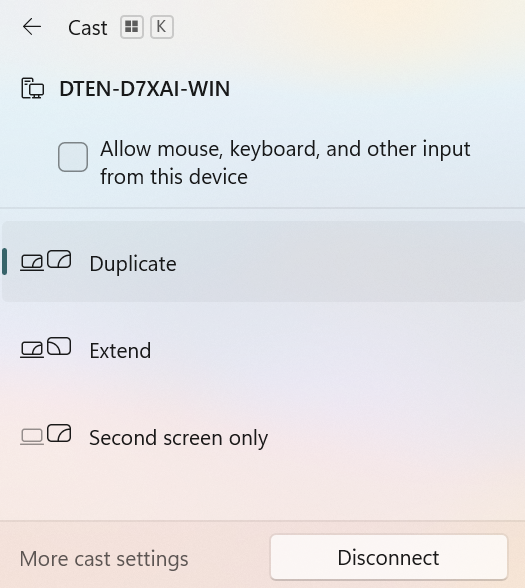
Choose Duplicate (mirroring) or Extend (preserves presenter notes).
Step 3: Highlight Key Experience Features
In-Meeting Auto-Share: If a Teams meeting is in progress, content automatically shares to remote attendees.
Touch Back Control: Point out the prompt on the laptop—“Allow mouse, keyboard, touch, and pen input from this device.” Explain how users can annotate or control the presentation directly from the D7X AI touch screen.
Step 4: Disconnect
- Press Win + K again on your laptop and select Disconnect.
Important Notes & FAQ
Audio: Miracast primary focuses on screen/video projection; system audio behavior may vary depending on laptop driver configurations.
DRM Content: Streaming platforms with DRM protection may display a black screen due to content protection policies.
Troubleshooting: If the room does not appear in the Cast list (Win + K), ensure your laptop's Wi-Fi is toggled on and confirm that Miracast is enabled for the D7X AI board in the Pro Management Portal.
If you have additional questions or need to contact DTEN Support, please refer to this DTEN Knowledge Base article for more details: HERE.
Was this article helpful?
That’s Great!
Thank you for your feedback
Sorry! We couldn't be helpful
Thank you for your feedback
Feedback sent
We appreciate your effort and will try to fix the article