

Overview
This guide outlines how to enable the Microsoft Edge browser button on the home screen of your DTEN D7X AI running Microsoft Teams Rooms on Windows (MTR-W). Once activated, users can launch Edge directly from the device's touch screen for quick and seamless web browsing during collaboration sessions.
Prerequisites
- Supported devices: A certified Teams Rooms on Windows touch board device
- Teams Rooms Pro license assigned to resource account signed in to the device.
- Teams Rooms on Windows application version 5.4 or later installed on the device.
Instructions
Sign in to the Teams Rooms Pro Management Portal.
In the left-hand navigation menu, click Rooms and select the D7X AI you want to configure.
Go to the Settings tab and then find the Device settings section.
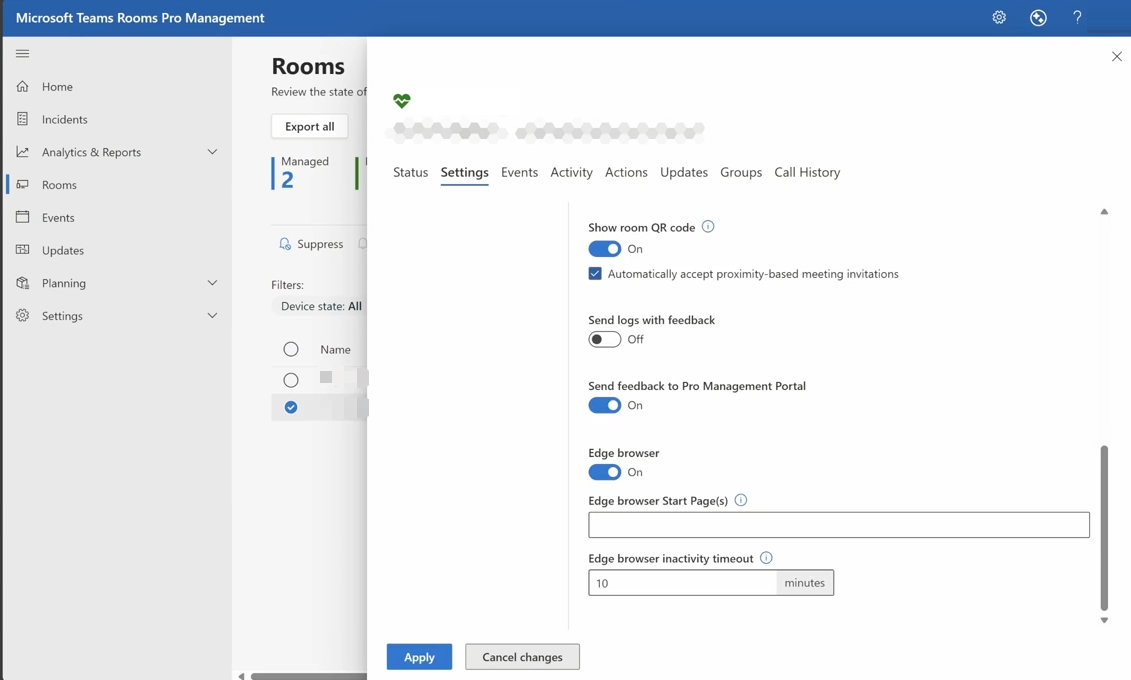
Adjust Edge browser settings
Edge browser (on/off): Enable or disable the Edge browser feature on the Teams Rooms device. Turn this setting on to allow the Edge browser to be used on that device (the browser icon will appear on the device’s home screen when enabled). It’s disabled by default.
Edge browser start page(s): Specify websites to open automatically when the browser launches. Multiple browser tabs can be specified by adding multiple URLs can be separated by a space (for example, https://www.microsoft.com https://www.contoso.com).
Edge browser inactivity timeout: This setting defines how long the browser can stay idle (with no user interaction) before it automatically closes itself. Enter a value from 0 to 100 minutes. (A value of 0 minutes means the session has no automatic timeout and will remain open until manually closed.) 10-minute is the default.
Apply the changes.
To learn more, see Edge browser on Teams Rooms touch boards - Microsoft Teams | Microsoft Learn .
If you have additional questions or need to contact DTEN Support, please refer to this DTEN Knowledge Base article for more details: HERE.
Was this article helpful?
That’s Great!
Thank you for your feedback
Sorry! We couldn't be helpful
Thank you for your feedback
Feedback sent
We appreciate your effort and will try to fix the article