

Overview
Customers may encounter issues with setting up their ZoomAdmin account to automatically log in to Windows. This functionality is essential for ensuring seamless access to Zoom Rooms without needing to enter credentials each time
This article will provide instructions on how to set up the ZoomAdmin Account for auto-login on the DTEN D7X Windows device.
Supporting Products
- DTEN D7X Windows Edition
Solution:
To set up the ZoomAdmin account for autologin, follow these steps:
-
Open User Accounts Settings:
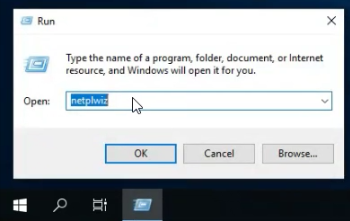
- Press Windows + R to open the Run dialog.
- Type netplwiz and press Enter.
-
Configure Autologin:
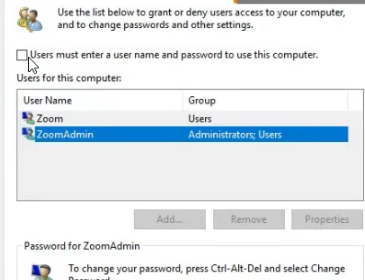
- In the User Accounts window, select the ZoomAdmin account (or the account you wish to set for autologin).
- Uncheck the box that says "Users must enter a user name and password to use this computer."
- Click on Apply.
-
Enter Password:
- A dialog will appear asking for the password for the selected account. Enter the password and confirm it.
- Click OK to save the settings.
-
Finalize Setup:
- Click OK again in the User Accounts window to close it.
-
Restart Your Computer:
- Restart your computer to ensure the changes take effect.
If you encounter any problems during the forced factory reset process, please contact DTEN support team [How to contact DTEN Support] for further assistance.
Was this article helpful?
That’s Great!
Thank you for your feedback
Sorry! We couldn't be helpful
Thank you for your feedback
Feedback sent
We appreciate your effort and will try to fix the article