
This article will describe how to manually install Zoom Rooms application for DTEN D7 55 & 75 and DTEN 55 & 75 Dual systems.
In order to manually install Zoom Rooms, you will need to do the following:
- Plug a keyboard into the PC's blue USB port (the top left port)
- Press Ctrl+Alt+Delete
- Click Sign Out
- You will be brought to the Windows lock screen
The password the account is:
ZoomAdmin (access to the PC) - Zoom1234
Once you get into the ZoomAdmin user, you can have access to uninstalling and reinstalling applications like Zoom Rooms. Just type in "Add or remove" to get to the "Add or remove" settings and uninstall the Zoom software. When you do reinstall, please make sure to follow these steps:
If you decide to update the Zoom Rooms software (https://zoom.us/download) while in the Admin profile, then please follow the following steps:
- Open Internet Explorer (you may need to type the name in the Windows search bar - located by the Windows button or taskbar).
- Go to zoom.us/download
- Download "Zoom Rooms for Conference Rooms and Touchscreen Displays" (v4.5.2)
- Launch the installer
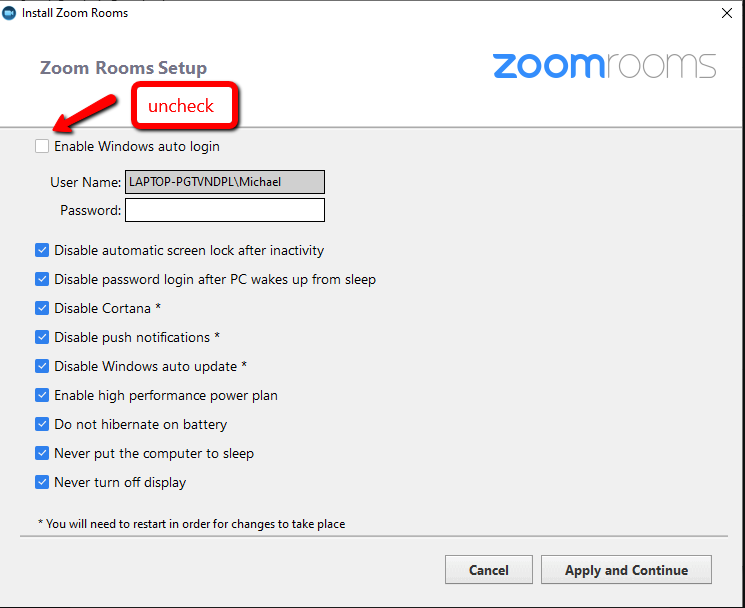
- Uncheck the box for "Enable Windows auto-login". DO NOT LEAVE CHECKED. Photo attached for reference.
If you have additional questions, please contact DTEN Support at support@dten.com for assistance.
Was this article helpful?
That’s Great!
Thank you for your feedback
Sorry! We couldn't be helpful
Thank you for your feedback
Feedback sent
We appreciate your effort and will try to fix the article