
OVERVIEW
This article introduces the BYOD Connection Prompt feature, explains how to configure it in Orbit Portal, and outlines the operational procedures for the BYOD function under both conditions: when the prompt is enabled and not enabled.
Preconditions
This feature requires your devices to meet the following conditions:
D7X Android and DTEN Bar Support BYOD Connection Prompt under Teams mode.
Supported model:
- DTEN D7X Android Edition (Firmware version 1.7.0 and above.)
- DTEN Bar (Firmware version 1.3.0 and above.)
How to Enable BYOD Connection Prompt
The BYOD Connection Prompt (Beta) is a feature that enhances the Microsoft Teams Room (MTR) sharing experience on DTEN devices.
Steps:
- Log in to the Orbit Portal as an admin.
- Navigate to Device Management.
- Choose Tenant Settings
- Toggle "BYOD Connection Prompt for Teams Room (Beta)" to ON.
- Save changes.
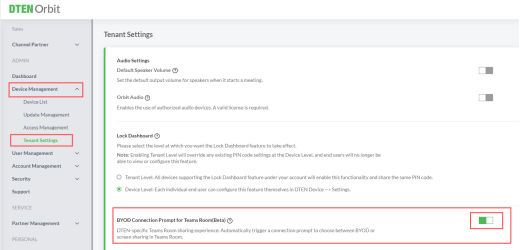
When the BYOD Connection Prompt (Beta) is Enabled to Use BYOD:
Steps:
- Connect your laptop using a via single USB-C or USB-C-to-USB-A + HDMI cables.
You’ll see two options:
Smart Connect Mode (BYOD)
Teams screen Share
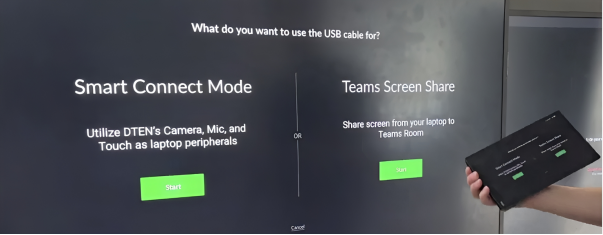
- Choose Smart Connect Mode.
-
Result:
Smart Connect Mode: Enable the BYOD (Bring Your Own Device) function.
Teams Screen Share: Serve as the screen sharing function for your PC.
When the BYOD Connection Prompt (Beta) is Not Enabled to Use BYOD:
Steps:
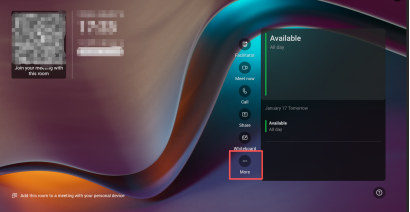
- Connect your laptop using a single USB-C or USB-C-to-USB-A + HDMI cables.
- Select More.
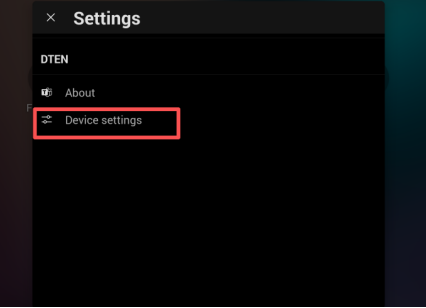
- Select Settings.
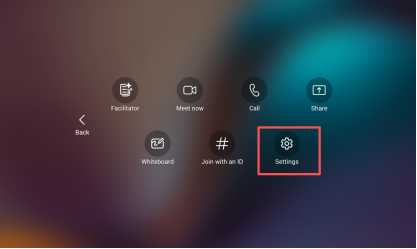
- Select Device settings.
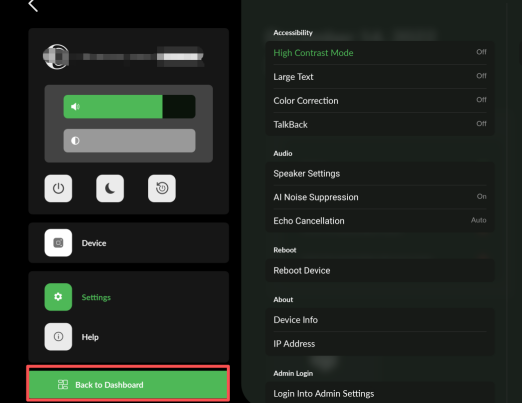
- Select Back to Dashboard.
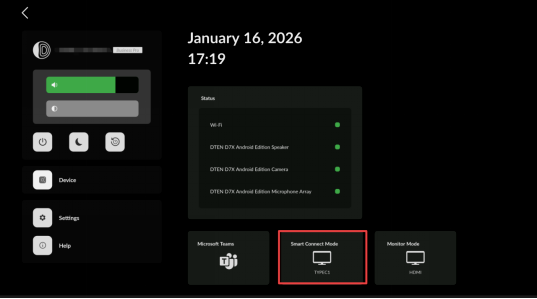
- Select Smart Connect Mode.
Getting Help
If you have additional questions, please contact DTEN Support at 1 (866) 936-3836 or click here.
Was this article helpful?
That’s Great!
Thank you for your feedback
Sorry! We couldn't be helpful
Thank you for your feedback
Feedback sent
We appreciate your effort and will try to fix the article