

Overview
This article will provide instructions on how to disable the sleep mode in DTEN ME and DTEN ME Pro systems.
Supporting Products
- DTEN ME Pro
- DTEN ME
Solution:
Please follow the steps below to troubleshoot and resolve this issue:
Step 1: Check Zoom Portal Settings
- Log in to the Zoom Portal: Access your Zoom account's administrative portal.
- Navigate to Room Management: Locate the "Room Management" section.
- Select Zoom Rooms: Click on "Zoom Rooms" to manage your device settings.
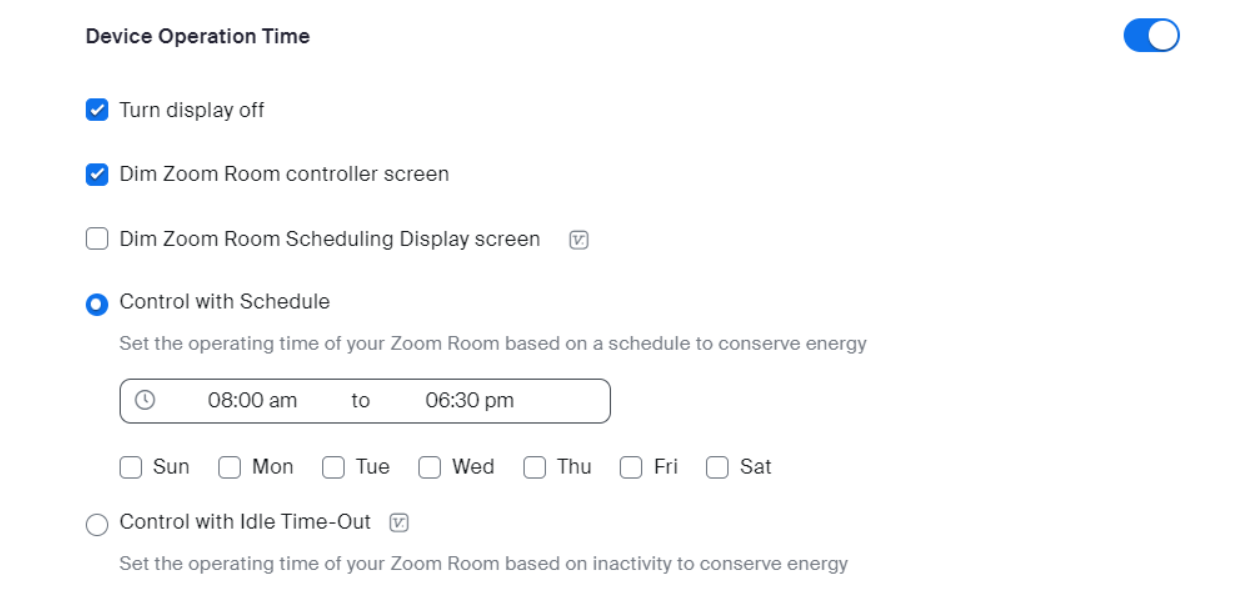
- Check Device Operation Time: Look for the "Device Operation Time" setting.
- Disable or Adjust: If this setting is enabled, disable it or adjust the idle timeout to your desired duration.
Step 2: Adjust Device Settings
Option 1: Using the Dashboard Screen
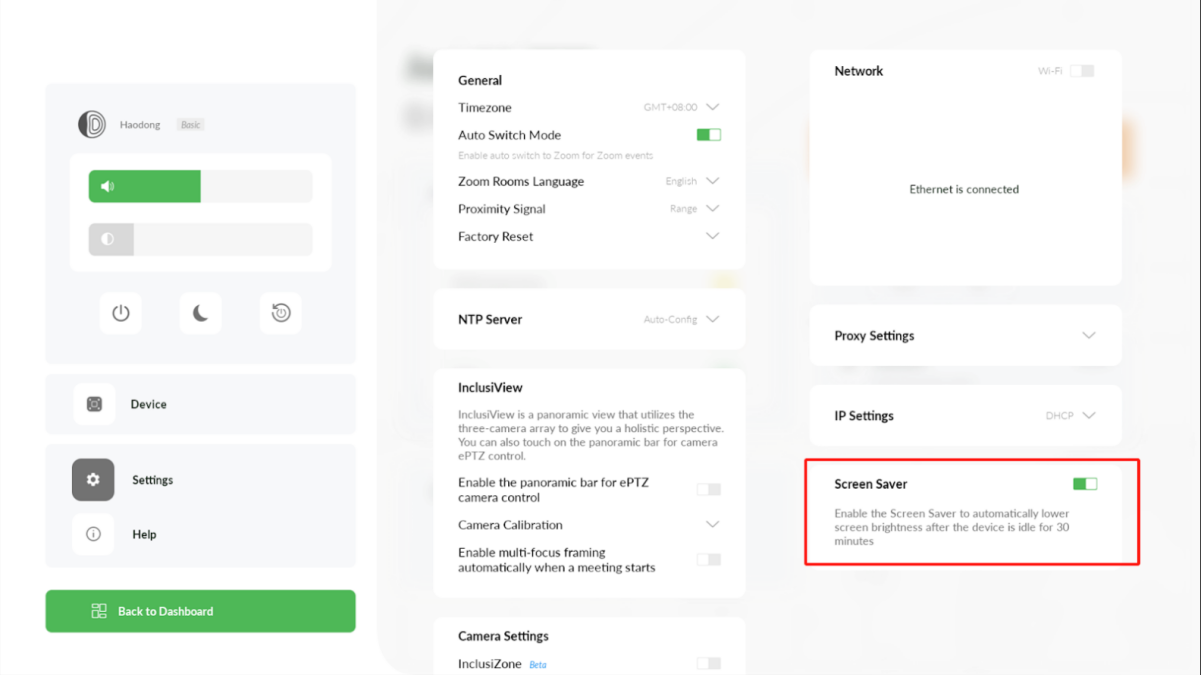
- Access the Dashboard: Enter the device's Dashboard page.
- Select Settings: Tap on the "Settings" icon.
- Locate Screen Saver: Locate the Screen Saver option in the bottom right corner.
- Disable Screen Saver: Turn off the screen saver function.
Option 2: Using the Orbit Settings Screen:
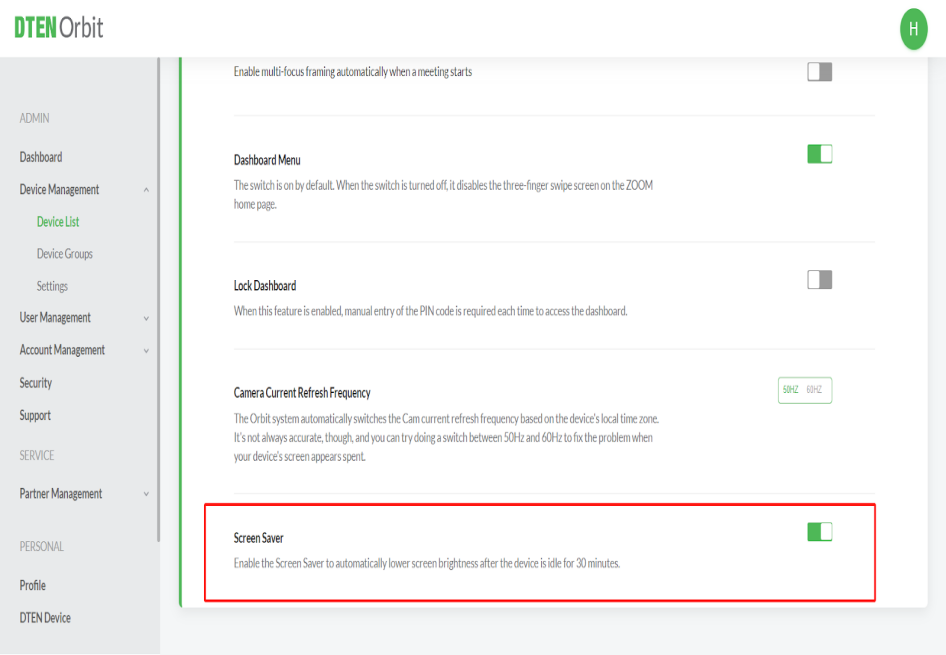
- Locate Screen Saver: Find the "Screen Saver" option in the settings menu.
- Disable Screen Saver: Turn off the screen saver function.
If you encounter any problems during the forced factory reset process, please contact DTEN support team [How to contact DTEN Support] for further assistance.
Was this article helpful?
That’s Great!
Thank you for your feedback
Sorry! We couldn't be helpful
Thank you for your feedback
Feedback sent
We appreciate your effort and will try to fix the article