
OVERVIEW
This guide details the procedures for setting the device time zone within both the Zoom and Microsoft Teams ecosystems. Specifically, it covers configuration through the Zoom Rooms interface and the Zoom web portal, as well as via the Teams Rooms device settings and the centralized Teams Admin Center.
How to set this feature?
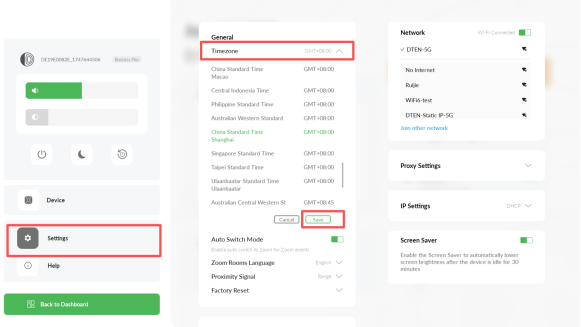
Method 1: Set Time Zone Under Zoom Rooms
Steps:
- Press the menu button of the device and go to Dashboard.
- Click the Settings.
- Click Timezone. (Under Time zone, click the dropdown menu and select the time zone you want.)
- Your device time zone will adjust to your selected time zone.
Method 2: Set Time Zone On the Zoom Web Portal
Steps:
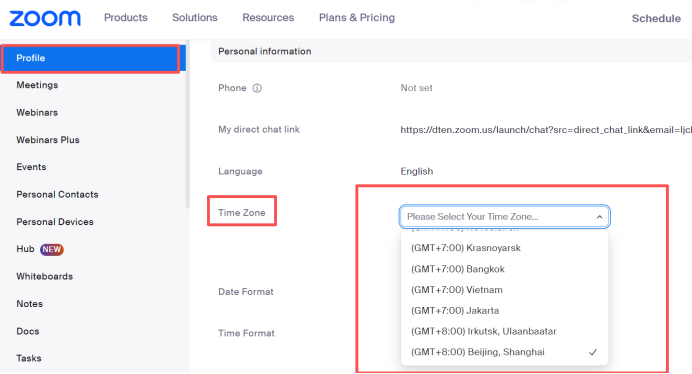
- Sign in to the Zoom web portal.
- In the navigation menu, click Profile.
- Personal Information, to the right of Time Zone, click Edit.
- Click the dropdown menu to select a different time zone.
- Click Save.
- Your time zone settings will update to your selected time zone.
Method 3: Set Time Zone Under Teams Rooms
Steps:
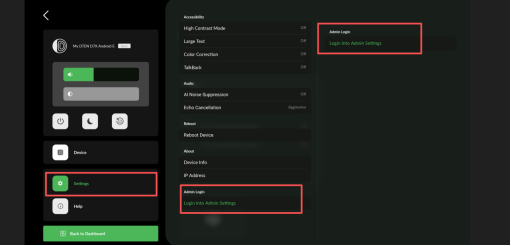
- Open the Menu.
- Click the Settings.
- Click Login Into Admin Settings→Login Admin Settings of the Top Right Corner.(By default, no password is required)
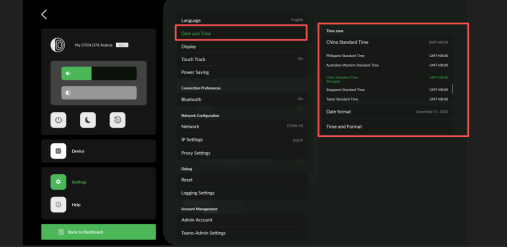
- Click Date and Time.
- Under Time zone, click the dropdown menu and select the time zone you want.
- Click the dropdown menu and select the time zone you want.
Method 4: Set Time Zone On Teams Admin Center
Steps:
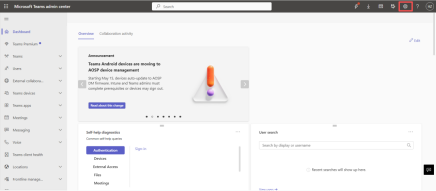
- Get Into the Teams Admin Center.
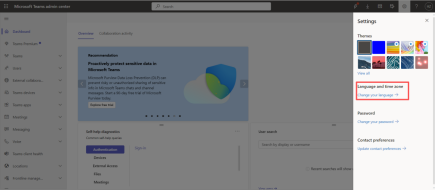
- Click Setting of the Top Right Corner.
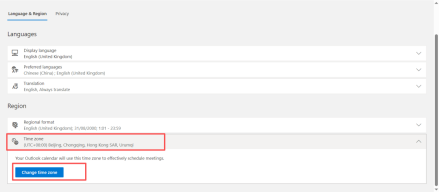
- Language and Time Zone→Change Your Language.
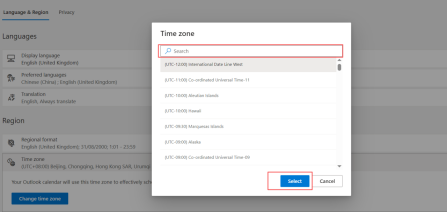
- Change the Time Zone.
-
Search and select your time zone.
Getting Help
If you have additional questions, please contact DTEN Support at 1 (866) 936-3836 or click here.
Was this article helpful?
That’s Great!
Thank you for your feedback
Sorry! We couldn't be helpful
Thank you for your feedback
Feedback sent
We appreciate your effort and will try to fix the article