
Overview
This article will describe how to manually install Zoom Rooms application for DTEN Windows units (DTEN D7 55 & 75 and DTEN 55 & 75 Dual systems, D7X Windows 55&75 Windows Edition, D7X 55&75 DUAL, D7X AI Windows).
In order to manually install Zoom Rooms, you will need to do the following: How to Log into Windows on the DTEN D7 System : DTEN Help Center
- Plug a keyboard into the PC's blue USB port (the top left port)
- Press Ctrl+Alt+Delete
- Click Sign Out
- You will be brought to the Windows lock screen
The password the account is:
ZoomAdmin (access to the PC) - Zoom1234
Once you get into the ZoomAdmin user, you can have access to uninstalling and reinstalling applications like Zoom Rooms. Just type in "Add or remove" to get to the "Add or remove" settings and uninstall the Zoom software. When you do reinstall, please make sure to follow these steps:
If you decide to update the Zoom Rooms software (https://zoom.us/download) while in the Admin profile, then please follow the following steps:
- Open Internet Explorer (you may need to type the name in the Windows search bar - located by the Windows button or taskbar).
- Go to zoom.us/download
- Download "Zoom Rooms for Conference Rooms and Touchscreen Displays"
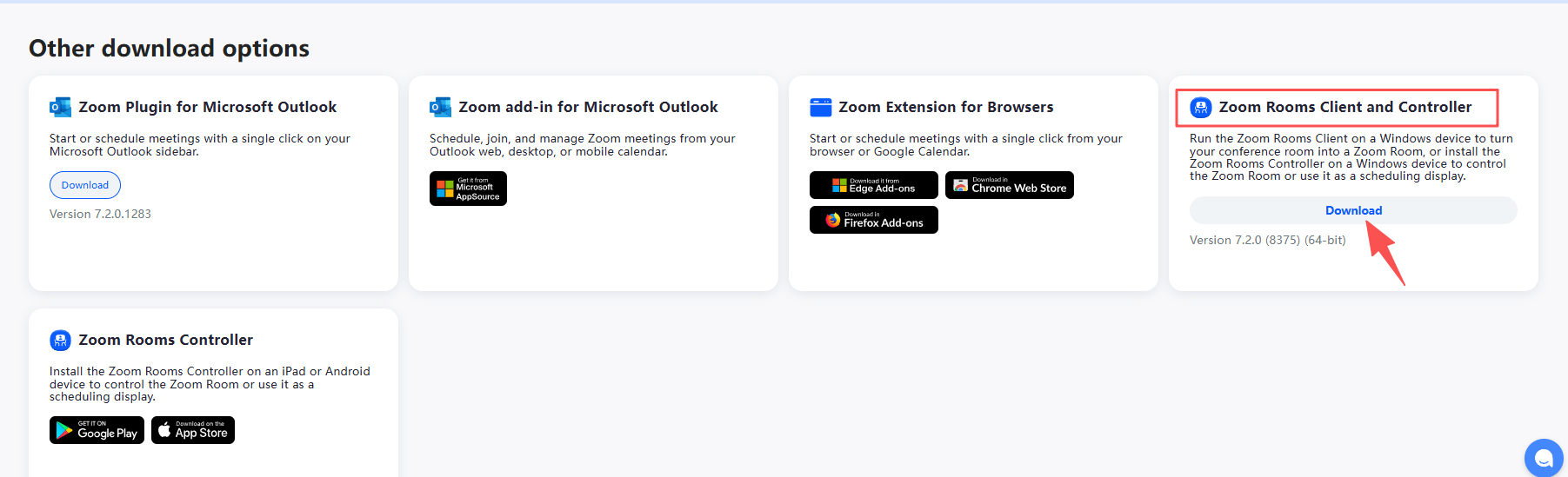
- Launch the installer
- Uncheck the box for "Enable Windows auto-login" if you see the box as below. DO NOT LEAVE CHECKED. Photo attached for reference.
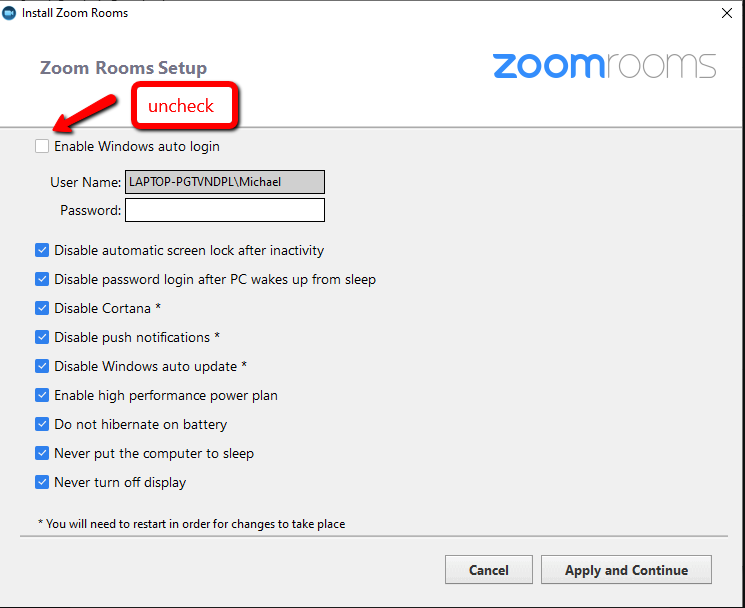
Manual Installation of Zoomroom Application
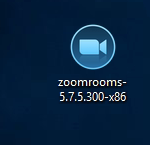
1. Double-click the zoomrooms-x.x.x.exe file to be installed, Click "yes".
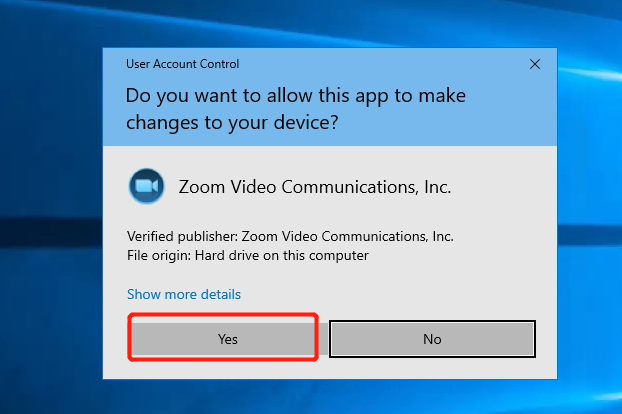
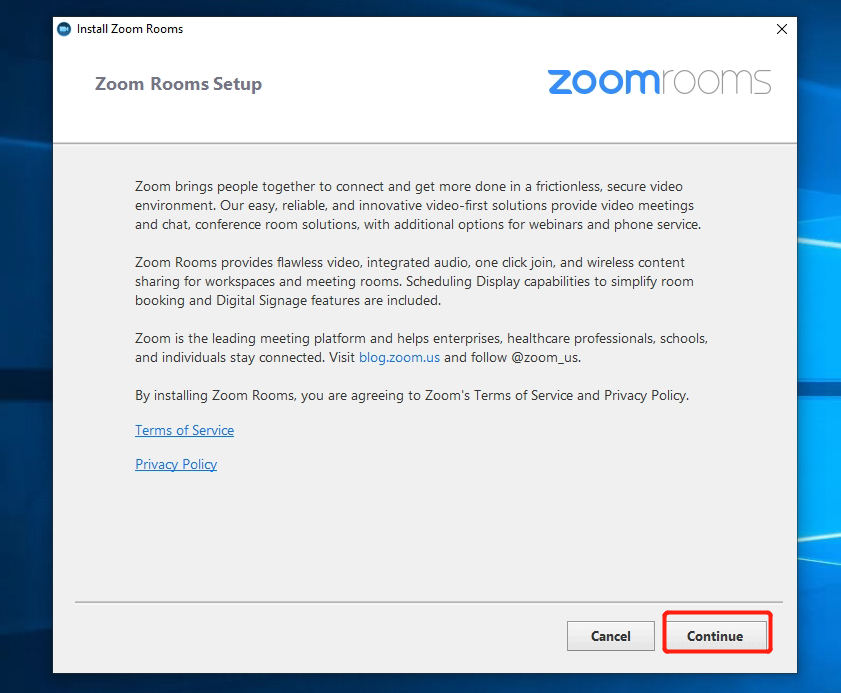
2. Click “Continue”.
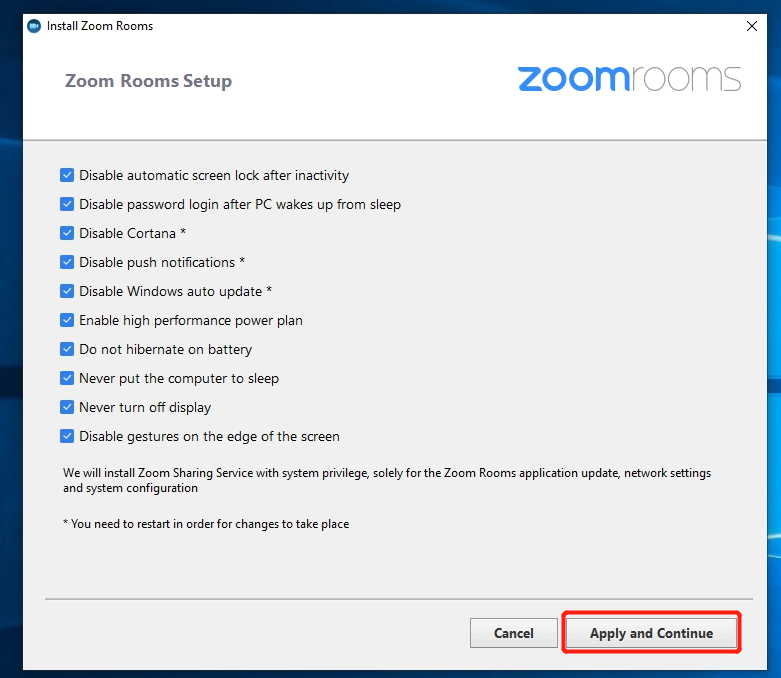
3. Click ”Apply and continue”.
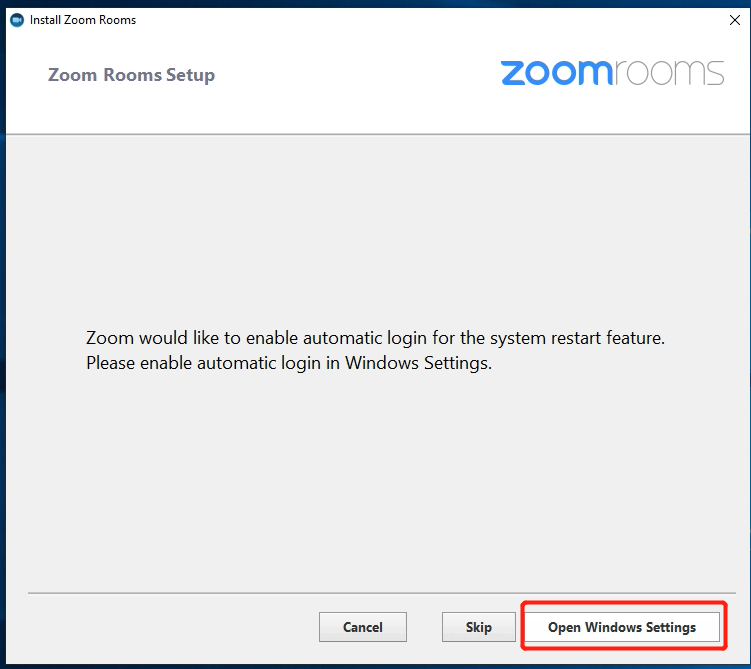
4. Click “Open Windows Settings”.
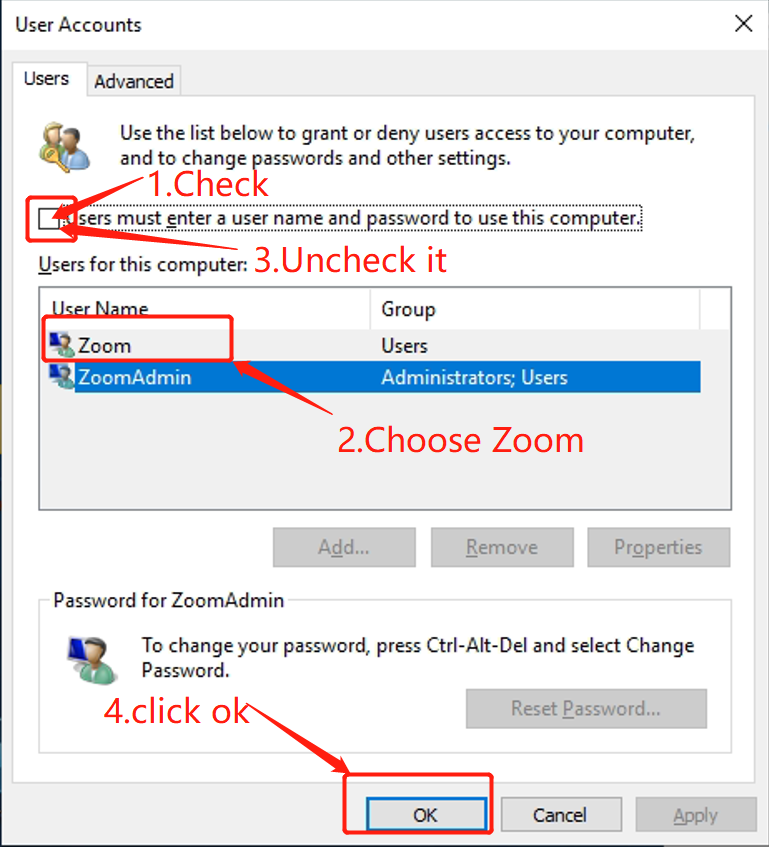
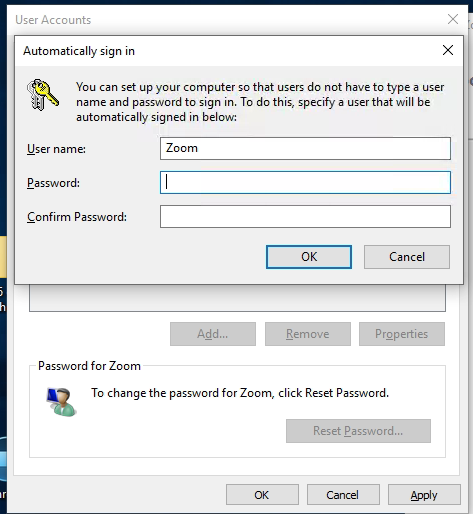
1) Check “ Users must enter a user name and password to use this computer”.
2) Choose Zoom.
3) Uncheck it "Users must enter a user name and password to use this computer".
4) Click "ok", and the password input page will pop up.
5. Enter the password, The default password is: Zoom123
Click “OK” to finish the installation.
If you have additional questions or need to contact DTEN Support, please refer to this DTEN Knowledge Base article for more details: HERE.
Was this article helpful?
That’s Great!
Thank you for your feedback
Sorry! We couldn't be helpful
Thank you for your feedback
Feedback sent
We appreciate your effort and will try to fix the article