
Overview
This guide outlines how to mamage Room Passcode for Zoom Rooms. Room Passcode for Zoom Rooms is a required 1-16 digit numeric lock code that is used to prevent users from making setting changes on the Zoom Room controller or closing the Zoom Room application on the computer.
Prerequisites
- Role with edit access to Zoom Rooms.
- Zoom Rooms license.
How to edit the room passcode
To edit the Room Passcode for all Zoom Rooms in the account:
1. Sign in to the Zoom web portal as an admin with the privilege to edit account settings.
2. In the top-right corner, click your profile picture or initials, then click Admin Center.
3. In the side menu, click Product configuration.
4. Click Rooms, then click Zoom Rooms.
5. Click the Rooms tab.
6. Click Account Settings.
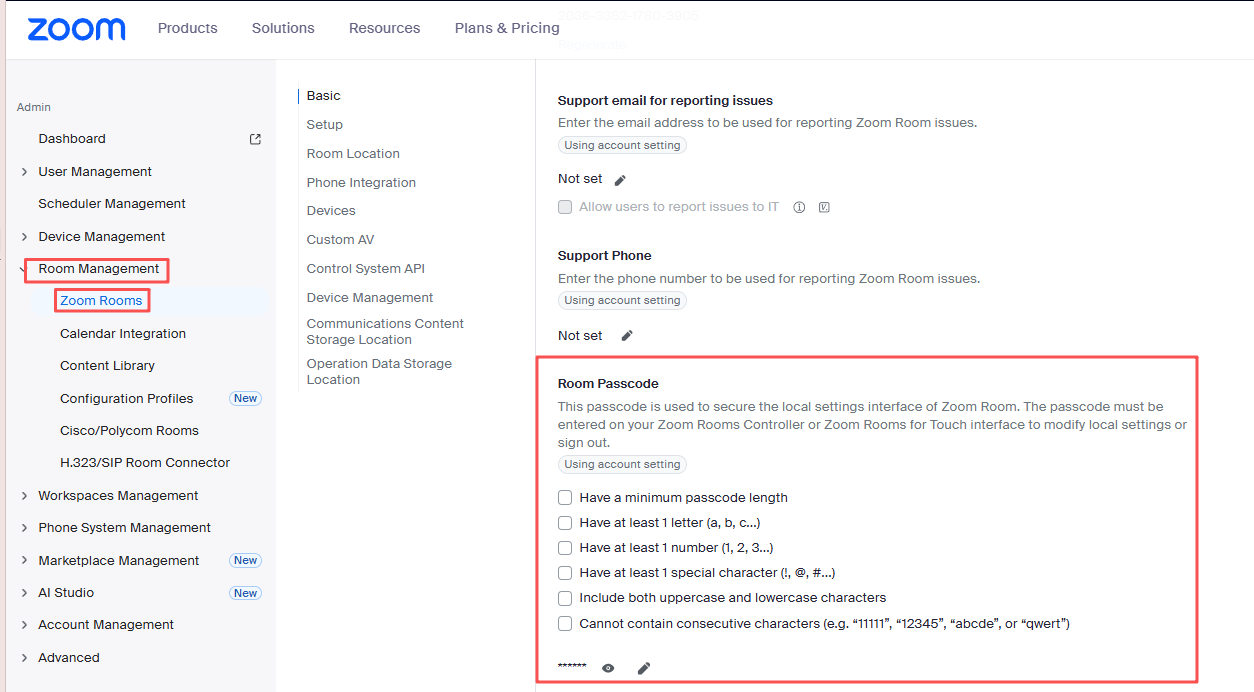
7. Under Basic, scroll down to Room Passcode.
8. (Optional) Select the passcode complexity requirements:
- Have a minimum passcode length
- Have at least 1 letter (a, b, c...)
- Have at least 1 number (1, 2, 3...)
- Have at least 1 special character (!, @, #...)
- Include both uppercase and lowercase characters
- Cannot contain consecutive characters (e.g., “11111”, “12345”, “abcde”, or “qwert”)
9. Click the pencil icon to edit the passcode.
10.Click Save.
11.(Optional) If you want to make this setting mandatory for all Zoom Rooms in your account, click the lock icon, and then click Lock to confirm the setting.
To edit the Room Passcode for a specific Zoom Room on the account:
1. Sign in to the Zoom web portal as an admin with the privilege to edit account settings.
2. In the top-right corner, click your profile picture or initials, then click Admin Center.
3. In the side menu, click Product configuration.
4. Click Rooms, then Zoom Rooms.
5. Click the Rooms tab, then locate the Zoom Room with the room passcode that you want to edit.
6. Click Edit.
7. Click the Rooms Profile tab.
8. Under Basic, scroll down to Room Passcode.
9. (Optional) Select the passcode complexity requirements:
- Have a minimum passcode length
- Have at least 1 letter (a, b, c...)
- Have at least 1 number (1, 2, 3...)
- Have at least 1 special character (!, @, #...)
- Include both uppercase and lowercase characters
- Cannot contain consecutive characters (e.g., “11111”, “12345”, “abcde”, or “qwert”)
10. Click the pencil icon to edit the passcode.
11. Click Save.
How to view the room passcode
To view the Room passcode:
1. Sign in to the Zoom web portal as an admin with the privilege to edit account settings.
2. In the top-right corner, click your profile picture or initials, then click Admin Center.
3. In the side menu, click Product configuration .
4. Click Rooms, then Zoom Rooms.
5. Click the Rooms tab, then locate the Zoom Room with the room passcode that you want to view.
6. Click Edit.
7. Click the Rooms Profile tab.
8. Under Basic, scroll down to Room Passcode.
9. Click the eye icon to view the passcode.
How to use the room passcode
You will have to enter the room passcode on the controller when you want to change settings or sign out/exit the Zoom Rooms application on your Zoom Rooms controller or computer.
To learn more, see Managing Room Passcode for Zoom Rooms.
If you have additional questions or need to contact DTEN Support, please refer to this DTEN Knowledge Base article for more details: HERE.
Was this article helpful?
That’s Great!
Thank you for your feedback
Sorry! We couldn't be helpful
Thank you for your feedback
Feedback sent
We appreciate your effort and will try to fix the article