











Overview
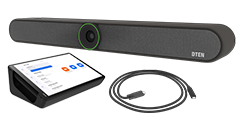
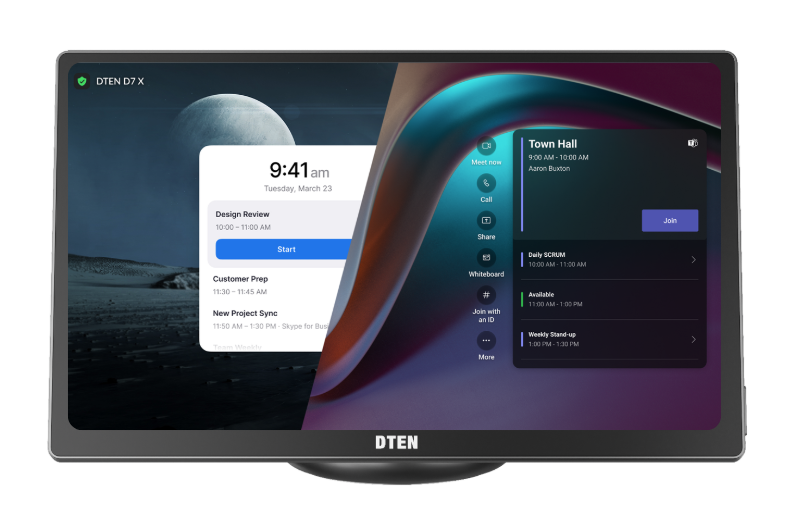
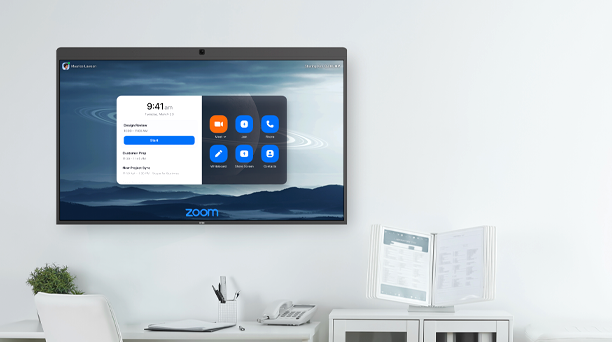
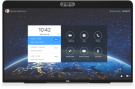
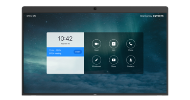
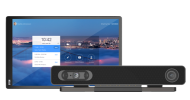
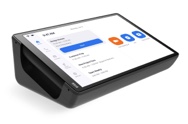
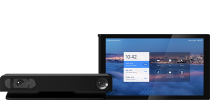
This article provides a step-by-step guide to remotely factory resetting your DTEN Android device using the Orbit Portal. The factory reset button is available for DTEN Android models, including DTEN Bar, D7X-Android, D7X 27, ON, ME, ME Pro or similar. Resetting your device remotely can help resolve system issues, clear configuration errors, or prepare the device for redeployment.
- Note for Windows device users: DTEN Windows devices (such as the D7 series or D7X-Windows) cannot be reset remotely via Orbit. If you are using a DTEN Windows device, please follow the instructions to factory reset your device by clicking HERE- D7 / D7X-W).
Prerequisites:
Before proceeding, please ensure the following:
- You have logged into your Orbit account. If you do not already have an Orbit account, please sign up for one by clicking HERE.
- Your target device is a supported DTEN Android model (Bar, D7X-Android, D7X 27, ON, ME, ME Pro or similar).
Once the prerequisites are met, the factory reset option will be available in the Orbit Portal for any compatible Android device.
On the Orbit Portal
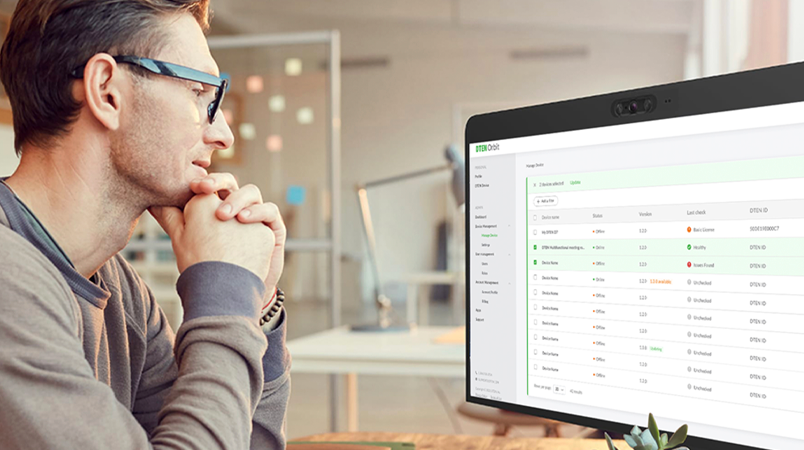
- Go to Device Management →Device List
- From the list of devices, select the device you want to reset
- Click the Settings tab
- Click Factory Reset
- This will prompt a confirmation page, after you click “Yes”, the device will start the factory reset process.
Note: It will not perform the Factory reset when the meeting is in progress. It will only reset when there is no meeting in progress.
If you have additional questions or need to contact DTEN Support, please refer to this DTEN Knowledge Base article for more details: HERE.

Comments
0 comments
Article is closed for comments.