

Overview
This article provides instructions on how to perform a forced factory reset when the DTEN Mate device is unresponsive.
Supporting Products
- DTEN Mate (WiFi & PoE)
Solution:
How to Perform a Forced Factory Reset:
- Locate the Reset Button: Find the small pinhole on the back of your DTEN device, which is the reset button.
- Press and Hold: Insert a small object (like a paperclip) into the pinhole and press and hold the reset button.
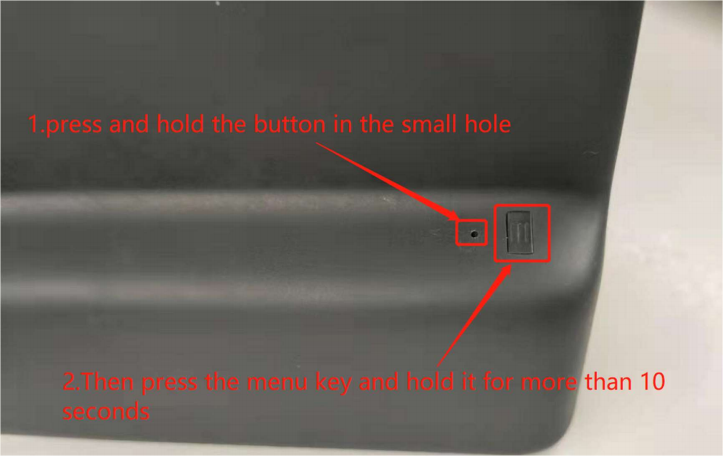
- Press and Hold the Menu Button: While still holding the reset button, press and hold the physical menu button on the device.
- Release Buttons: Continue holding both buttons until the DTEN logo appears on the screen. Then, release both buttons.
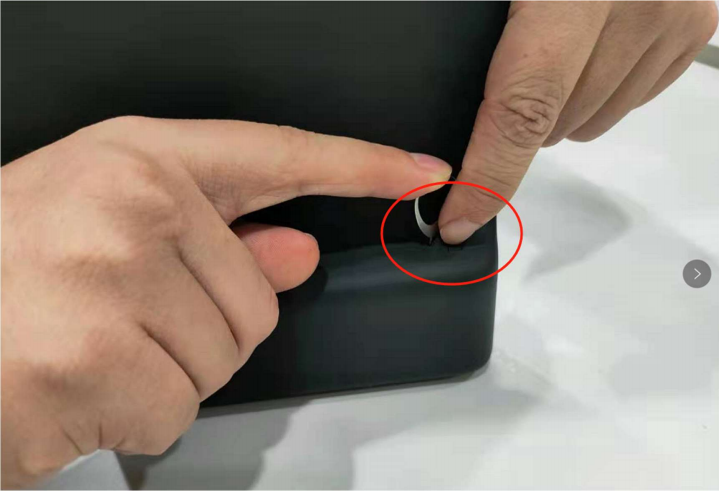
- Wait for Reset: The device will now reboot and begin the factory reset process.
Important Note:
- Re-Pairing: After a factory reset, you may need to re-pair your DTEN device with other devices or systems.
If you encounter any problems during the forced factory reset process, please contact DTEN support team [How to contact DTEN Support] for further assistance.
Was this article helpful?
That’s Great!
Thank you for your feedback
Sorry! We couldn't be helpful
Thank you for your feedback
Feedback sent
We appreciate your effort and will try to fix the article