











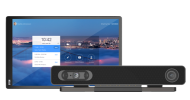
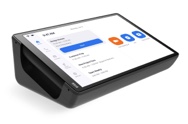


Update Requirements
- Available on the DTEN Orbit portal
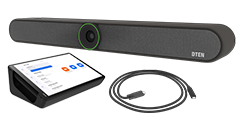
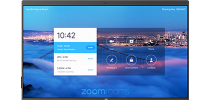
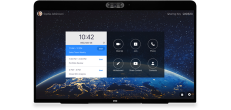
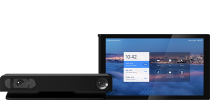
- DTEN ME / ME Pro should be powered on and connected to a stable or open Zoom whitelisted network without a firewall (Ethernet preferred). For more information, click here.
- Once started, the update will take approximately 3 minutes; DTEN ME / ME Pro will automatically restart. Note that the device will only update if not in a meeting or calendar event.
- Do not disconnect or power off during the update.
New
-
When using the Mission Control for IT feature on Orbit:
- The OMC App is installed automatically.
-
Mission Control can be used while the device is in use, though the user has the right to decline
the connection.
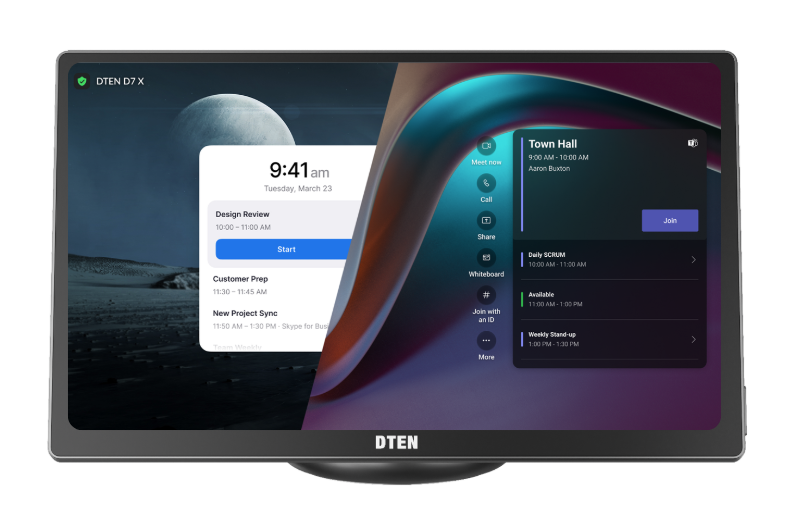
- A virtual menu button has also been added to enter the Dashboard page.
Resolved
- Minor Bug fixes
Known Issue
- When “Screen Saver” is enabled, even if Digital Signage is applied, the device will automatically turn off the screen after 30 minutes of inactivity.
- When the Video Boundary feature is enabled, the screen may appear to jump when people are near the defined distance edge.
- When InclusiView is enabled, color balance, image overlap, and misalignment issues may occur with the camera stitching.
- The screen may occasionally flash green during a meeting. Please report this to the DTEN support team if it happens.
- When multiple people are on the conference screen with InclusiView enabled, the top of the screen may occasionally flash a red stripe. Please report this to the DTEN support team if it happens.
- The video output may be disabled occasionally, and the camera switch may be grayed out. Current workaround: restart the device.
Zoom Rooms Version: 6.6.1.8162

Comments
0 comments
Article is closed for comments.